Retrieve a project from a PLC
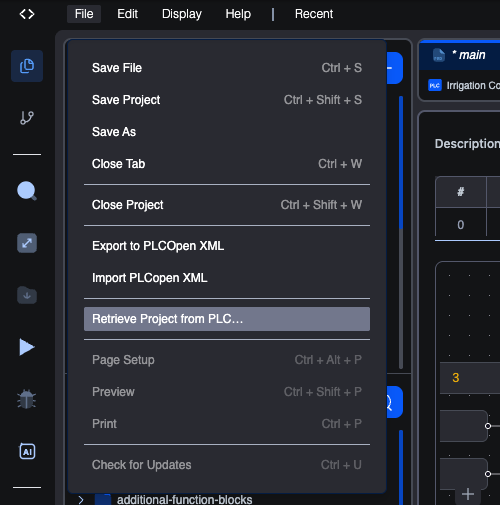
File → Retrieve Project from PLC… downloads the source project a device is holding and opens it in the editor.
This answers a situation every commissioning engineer knows: a machine is running, the program on it works, and nobody can find the project it was built from. Because every upload sends the source project along with the compiled program, the device itself is the copy of last resort.
What is stored, and when
Uploading attaches a snapshot of the source project to the program you send. It happens on every upload, from either the web editor or the desktop editor, with nothing to switch on.
A device therefore holds the project of its most recent upload. Two consequences:
- A device programmed before this feature existed has nothing to retrieve. It still appears in the picker, with no project attached.
- The stored copy tracks uploads, not edits. If you changed the project after the last upload, the device is holding the older version.
Retrieving
- File → Retrieve Project from PLC…
- The editor searches for devices and lists what it finds.
- Select one and click Continue.
- Sign in to that device.
- The project is downloaded and opens in the workspace.
Choosing a device
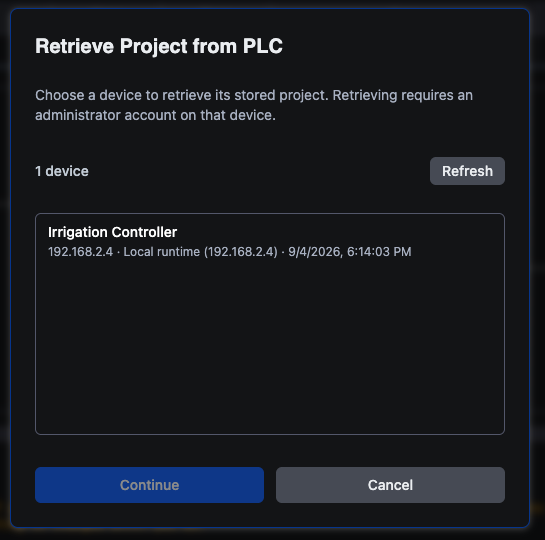
Each row leads with the name of the project the device is holding, and beneath it the device, its location, and when that project was stored. That is usually enough to pick the right machine without cross-referencing anything.
Rows behave in three ways:
| The row shows | It means | Selectable |
|---|---|---|
| A project name and a timestamp | The device answered and holds that project | Yes |
| No project stored (greyed out) | The device answered and has nothing attached | No |
| The device name and project unknown | The device did not answer the search in time | Yes |
The third case stays selectable on purpose. A device that said nothing has not told you it is empty, so the picker does not claim it is. Select it and the retrieval itself reports what is actually there.
Refresh runs the search again. With no devices at all the list reads "No devices found. Check the network and try Refresh."
Signing in
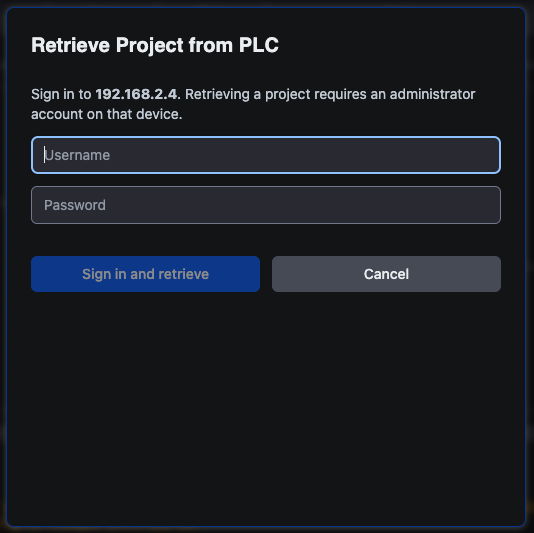
Retrieving requires an administrator account on that device. A User-role account can sign in to the runtime but cannot pull the stored project down. See User management.
If you are already connected to the device you picked, this step is skipped entirely and retrieval starts at once, because the session you are holding is the right one.
If you are connected to a different device
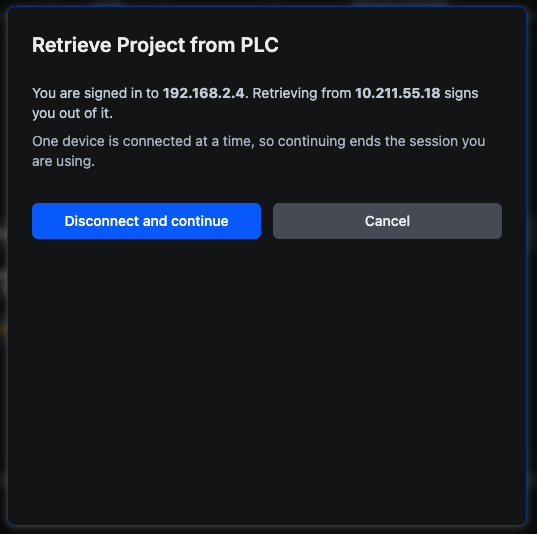
The editor holds a session for one device at a time, so signing in to another ends the one you have. Rather than doing that quietly as a side effect of browsing, the dialog stops and names the device you are about to be signed out of. Disconnect and continue accepts; Cancel leaves your existing session alone.
Unsaved changes stop the retrieval
The project you have open is closed first, exactly as File → Close Project would close it. If it has unsaved changes you get the usual prompt:
There are unsaved changes in your project. Do you want to save before closing? Save and close · Close without saving · Cancel
The retrieval stops at this point rather than waiting for your answer. Behind the prompt, the dialog returns to the device list carrying a message telling you to save or discard first and retrieve again. Whatever you choose applies to closing your project, not to the retrieval, so once the project is dealt with, repeat the four steps. It costs one extra pass.
Two details worth knowing:
- A device that turns out to hold nothing never costs you your open project. You are only asked about your unsaved changes once there is actually something to replace them with.
- Nothing is replaced behind your back. Your project is still there, unchanged, whichever button you press on the prompt.
What you get
The retrieved project replaces what was open: its POUs, data types, global variables, resource and library list, exactly as they were when it was uploaded. From this point it behaves like any other open project, with the one exception below.
A retrieved project has no home yet
This is the one behaviour to understand before you start editing.
It came from a device, not from a location you chose, so an ordinary save is refused:
This project has no location yet It was retrieved from a device. Use Save As to choose where to keep it, then saving works as usual.
Building is unaffected. Compiling a retrieved project works straight away, because the editor's own pre-build write is allowed even while a user-initiated save is not. Only your save is held back, and only until the project has somewhere to live.
On the web editor, Save As is not available yet
Choosing File → Save As in the browser reports:
Not supported Path picker is not available in the browser.
So on the web editor a retrieved project can be opened, inspected, edited and built, but there is currently no way to keep it. Close the browser tab and it is gone.
To retrieve a project and keep a copy, use the desktop editor, where Save As writes it to a folder you choose. Web support is planned.
Libraries the project needs
A retrieved project brings the list of libraries it was built with. On the desktop editor, anything missing is offered for installation, and you are told which of two situations applies:
- Not installed here. The library is absent and needs installing before the project will build.
- Installed but different. You have a library of the same name whose contents differ from the one the project was built with. This is the one to read carefully: building against it produces a different program from the one running on the device, silently. Update it to match before trusting a rebuild.
See Installing a library.
Troubleshooting
No devices found. The search reaches devices through your Edge Device. Check the device is powered and reachable, then click Refresh. A device on another subnet may not answer.
Devices are listed but every row says "project unknown". The devices were found, but the part of the search that asks each one what it holds did not answer. This happens when the Device Agent is older than the feature. The list is still usable: select a device and retrieve, and you will find out what it has. Updating the agent restores the project names.
"No project stored" on a device you know is programmed. It was last programmed before uploads began carrying the source, or by a tool that does not attach one. Upload from the editor once and the project will be there afterwards.
Sign-in is refused. Retrieving needs an administrator account on the device, not merely a valid one.
The retrieval keeps stopping. Your open project has unsaved changes. Save or discard them, then retrieve again.
Related
- Deployment to a vPLC for uploading, which is what puts the project on the device in the first place.
- User management for the administrator account retrieving requires.
- Connecting to runtimes for how device sessions work.
On This Page