Runtime status
Runtime Status answers two questions about the device you are connected to: what it is, and how it is running. It also holds the one action that needs a device rather than a project, changing the runtime version installed on it.
It lives under the Device branch of the project tree.
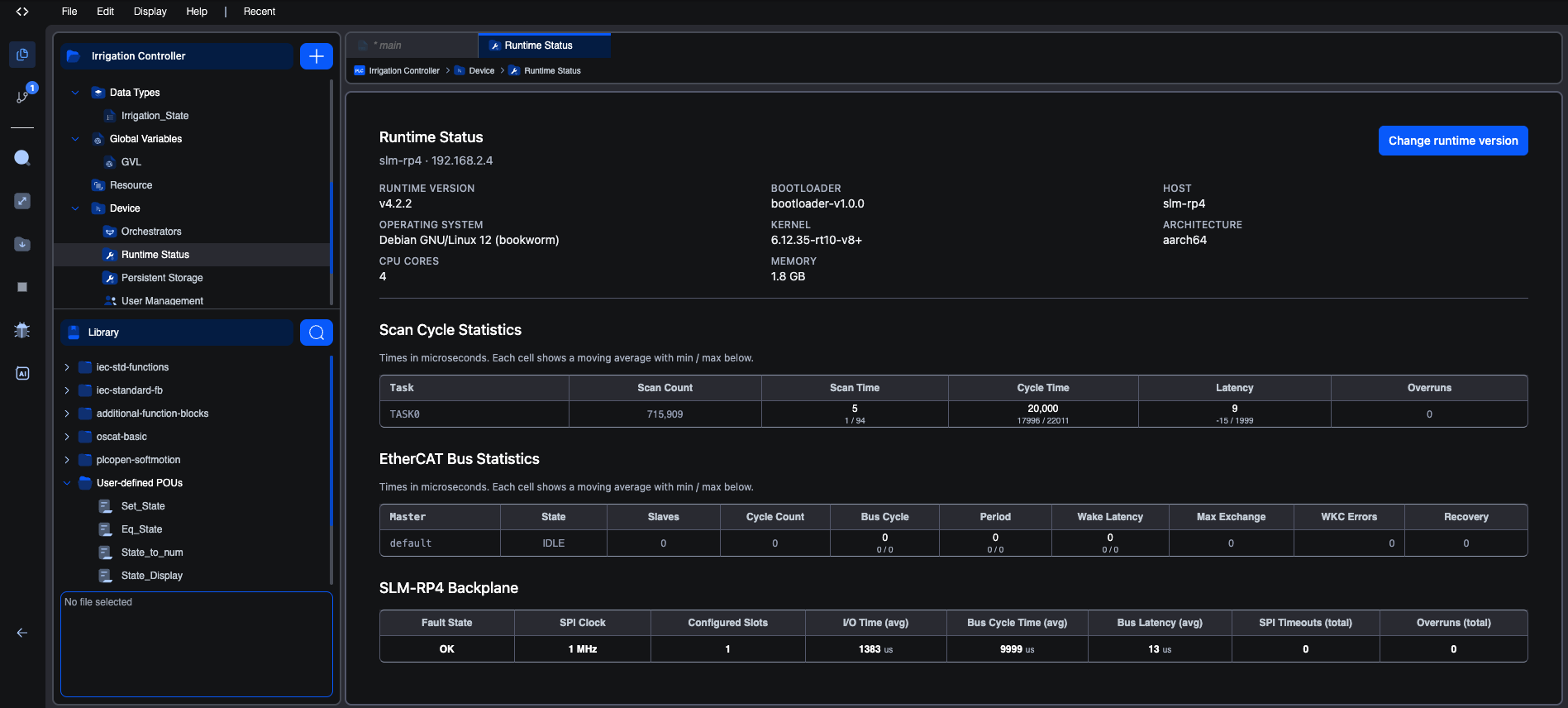
If you have used the statistics before, this is where they went. The scan-cycle, EtherCAT and plugin tables used to sit at the bottom of the Edge Devices screen in the web editor, and at the bottom of the Device Configuration screen in the desktop editor. They were never configuration, and on the desktop you had to scroll past a pin-mapping table to reach them. They are unchanged; they simply have their own screen now.
When the screen appears
Everything here is read from a live device, so the leaf appears while you are connected to one. Opening it otherwise shows: "Connect to a runtime to see its status."
What the device tells you about itself
The header describes the machine your program is running on.
| Field | What it is |
|---|---|
| Runtime version | The OpenPLC runtime currently installed |
| Bootloader | The version of the bootloader on the device |
| Host | The device's hostname |
| Operating system | For example Debian GNU/Linux 12 (bookworm) |
| Kernel | The kernel release, which is where you can see whether it is a real-time kernel |
| Architecture | For example aarch64 |
| CPU cores | Worth knowing when you are sizing tasks: the core count is the budget your scan tasks share |
| Memory | Total system memory |
If some of these are empty, the device is a native install, or an installation old enough to predate the bootloader. It is not a fault, and nothing is wrong with the device. You simply see fewer details about it.
The statistics
Below the header are the same tables as before, refreshed while the screen is open.
Scan Cycle Statistics, per task, in microseconds. Each cell shows a moving average with the minimum and maximum beneath it.
| Column | Meaning |
|---|---|
| Scan Count | How many scans the task has completed since it started |
| Scan Time | How long the task's logic takes to execute |
| Cycle Time | The interval between scan starts, which should track the task's configured period |
| Latency | How late the scan started relative to when it was due |
| Overruns | Scans that did not finish before the next was due. This is the number to watch. Anything other than zero means the task is not keeping up |
EtherCAT Bus Statistics appear when the project has an EtherCAT segment, reporting master state, slave and cycle counts, bus timings and error counters.
Plugin statistics appear when the board provides them. In the screenshot above, the SLM-RP4 Backplane panel reports its fault state, SPI clock, configured slots and bus timings. What you see here depends on the hardware.
Changing the runtime version
The Change runtime version button installs a different OpenPLC runtime on the device.
The button appears only on devices that can do it. A native install, or an installation old enough to predate the bootloader, has no way to swap the runtime, so the button is not shown rather than being offered and then failing.
Picking a version
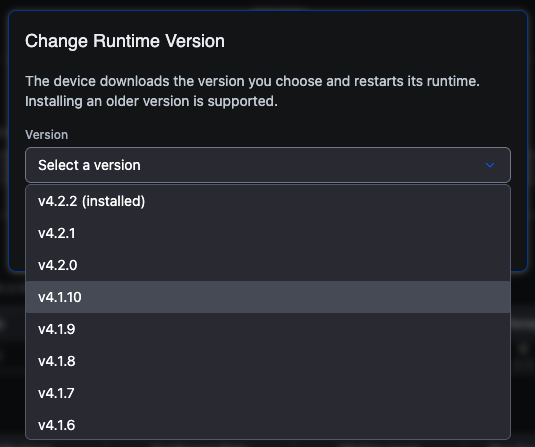
The list is populated from the published runtime releases, newest first. The version already on the device is marked (installed) and cannot be chosen, since installing what is already there would do nothing.
Upgrading and downgrading are the same action. There is no separate direction and no lower limit on what you can install: pairing an older runtime with an older editor is a legitimate thing to want, and the bootloader stays reachable either way.
If the release list cannot be fetched, the dropdown is replaced by a field you can type a version into, so a device that is offline but holding an image you side-loaded is still installable.
While it installs
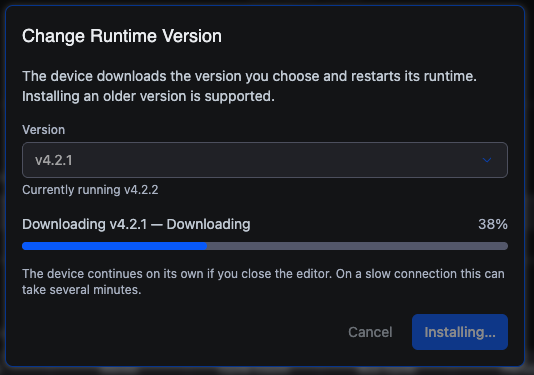
The device does the work: it downloads the image, replaces the runtime and then waits to confirm the new one starts. The dialog follows along and reports the stage it has reached:
| Shown | What is happening |
|---|---|
Downloading <version> | Fetching the image. The download's own phase appears beside it, and a percentage where one is available |
| Replacing the runtime | Swapping the running runtime for the new one |
| Waiting for the new runtime to start | Confirming the new version comes up healthy |
Installed <version> | Done |
| The update failed | Shown with the reason the device gave |
Closing the editor does not stop it. The device continues on its own, and on a slow connection the whole thing can take several minutes. The dialog cannot be dismissed while an install is in flight, so you will not close it by accident partway through.
Expect the PLC to stop and restart as part of this. Plan it the way you would any other runtime restart on a live machine.
If the device is in recovery
When the runtime is not running, the screen shows a warning at the top of the header saying the device is in recovery, with the reason the device reported and the advice to install a different version to recover it.
This is what the version change is for as much as upgrading: a runtime that will not start can be replaced with one that does, from the same dialog, without physical access to the machine.
Related
- Connecting to runtimes for establishing the device session this screen needs.
- Understanding tasks for what the scan-cycle numbers are measuring and how task periods are set.
- User management, the other screen that configures the connected device rather than the project.
On This Page