Startup Parameters
The Startup Parameters tab is the fourth tab in the Slave Device Editor. It lists the SDO (Service Data Object) writes the master performs against the slave during startup, after Pre-Op but before Safe-Op → Op. SDO writes are how you set device parameters that need to be applied once at boot. Not on every cycle.
Typical use cases:
- Selecting the operating mode of a servo drive (CSP / CSV / CST).
- Configuring an analog input terminal's filter time, range, or unit.
- Setting a counter terminal's gating mode or pre-set value.
- Enabling features described as "configured by SDO 0x____ sub-index __" in the manufacturer's manual.
If your slave does not need SDO writes. Most digital I/O terminals do not. This tab can be left empty.
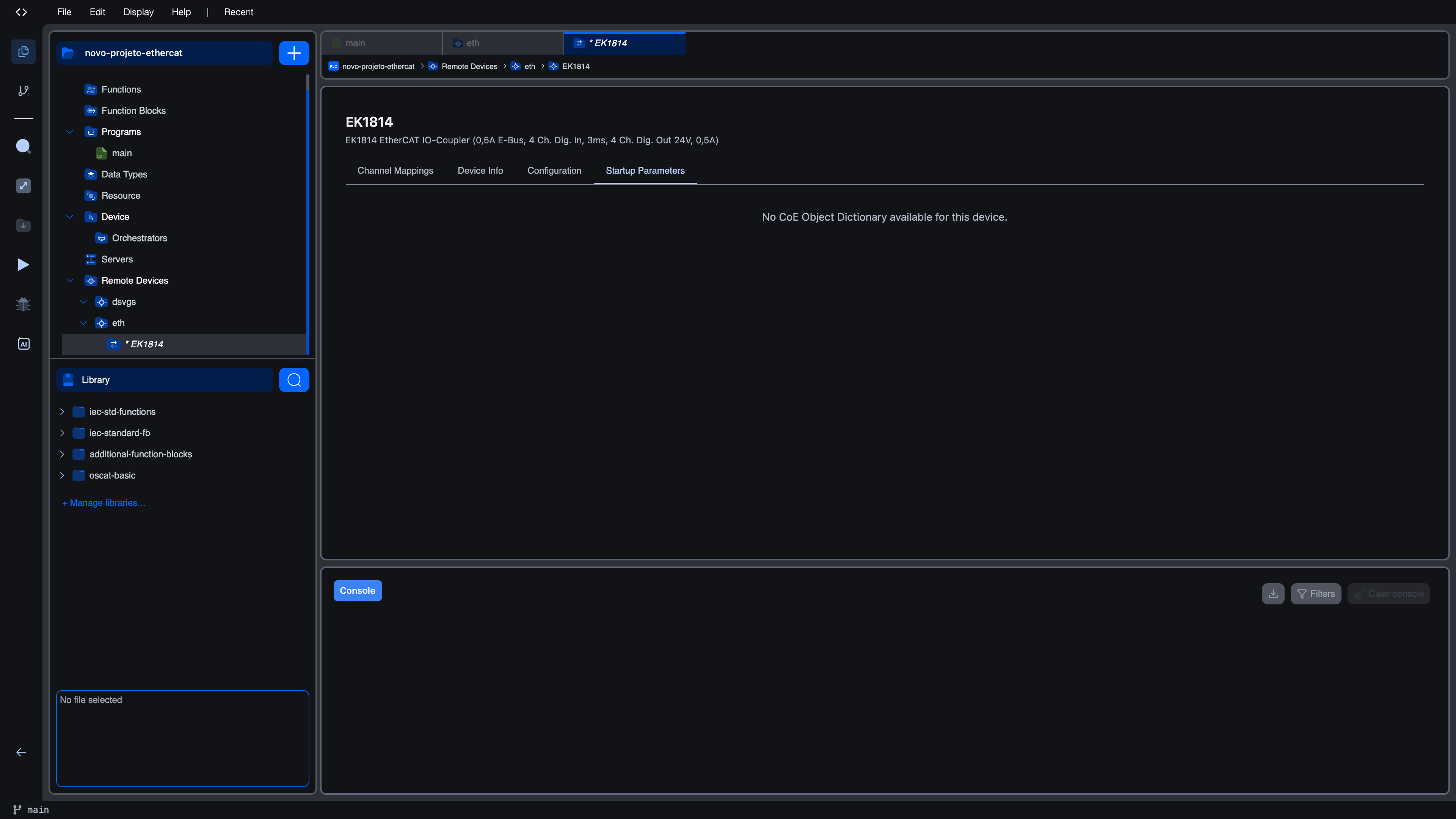
What you see when there are no parameters
There are two empty states, depending on what the ESI XML for the slave declares:
| Empty state | What it means |
|---|---|
No CoE Object Dictionary available for this device. | The matched ESI does not contain a CoE (CAN over EtherCAT) object dictionary. The slave may genuinely have nothing to configure (typical for plain digital terminals like the Beckhoff EL1809), or the ESI was published without the dictionary. Either way, there is nothing to write. |
CoE Object Dictionary available for this device. Auto-configure startup parameters? with an Auto-configure from ESI defaults button | The ESI has a CoE dictionary but no startup parameters have been configured yet. Click the button to populate the table with every configurable parameter from the ESI, each pre-filled with its declared default value. |
No configurable SDO parameters found in this device's CoE dictionary. | The CoE dictionary exists but contains no SDOs marked as configurable in the ESI. |
The auto-configure button is the right choice for most slaves: it gives you the full list, and the parameters whose defaults you want to keep can stay at their defaults. Only the values you change are flagged as modified.
The parameter table
When the table is populated, you see a toolbar at the top followed by a tree-style grid of every CoE object the slave exposes.
Toolbar
| Control | Action |
|---|---|
| Search parameters… field | Live filter by parameter name, data type, or CoE index. Type-ahead. No enter required. |
| Reset All to Defaults | Reverts every parameter to its ESI default. Disabled until at least one parameter has been edited. |
| Expand All | Open every CoE object group at once. |
| Collapse All | Collapse every CoE object group, keeping only their headers visible. |
| Counter on the right | Reads <N> object(s), <M> parameter(s) and adds modified values highlighted once at least one parameter differs from its default. |
Object groups
Each CoE object is shown as a group header row with its index in hex (e.g. 0x6060), the human-readable object name, the number of sub-parameters in parentheses, and a modified badge if at least one sub-parameter has been changed. Click anywhere on the header row to expand or collapse the group.
When expanded, each sub-parameter is one editable row with these columns:
| Column | Meaning |
|---|---|
| Sub | Sub-index of the SDO entry (decimal, e.g. 1 for the first sub-entry of an object). |
| Name | The sub-entry name from the ESI XML. Long names are truncated; hover to read the full text. |
| Type | The IEC data type as declared in the ESI (UINT8, INT16, BOOL, …). |
| Bits | Bit length of the entry. |
| Default | The default value declared in the ESI. Read-only. |
| Value | The value that will be written at startup. Editable. |
Modified rows are highlighted in pale amber so you can see at a glance which values you have customised.
Editing a value
The Value cell adapts to the data type:
| Data type | Editor |
|---|---|
BOOL | Checkbox. 1/true is checked, 0/false unchecked. |
Integer types (USINT, UINT, INT, DINT, UDINT, SINT, …) | Number input clamped to the type's natural range. The editor enforces the range on blur. Typing 300 in a UINT8 (0 -- 255) cell will be clamped to 255. |
Floating-point (REAL, LREAL) | Number input with decimal step. Range is clamped to the IEEE-754 range of the type. |
| Strings or unknown types | Plain text input, no validation. |
You do not need a save button. As soon as you tab out of (or click out of) a cell, the value is committed and the workspace is marked unsaved. Press Ctrl+S as usual to persist to the project file.
Resetting
Two ways to revert a value:
| Scope | How |
|---|---|
| One value | Manually retype the Default value in the Value cell. |
| Every value | Click Reset All to Defaults in the toolbar. |
There is no per-row reset button.
When SDOs are written
The values you configure here are sent to the slave once, during startup, between Pre-Op and Safe-Op. They are not re-sent on every cycle. If you change a value in the editor while the bus is running, the change does not take effect until the runtime restarts and the slave goes through the boot sequence again.
If a slave consistently fails to enter Safe-Op, the most likely cause after cabling is an SDO write returning an error. The runtime log records the failing index, sub-index, and SDO error code. See Troubleshooting for the typical recovery flow.
What's next?
- Channel Mappings to wire the slave's I/O to IEC variables
- Configuration to extend the SDO timeout if your slave's SDO writes take longer than 1 second
- Diagnostics to confirm the slave reaches Op once the startup writes succeed
On This Page