Persistent storage for retained variables
A PLC loses the contents of its memory when it powers down. Usually that is what you want: the program starts from a known state. Sometimes it is not. A production counter, a totaliser, an operator's chosen recipe or a machine's last mode are all values that should still be there after a power cut.
IEC 61131-3 handles this with retained variables, and making them work takes two steps:
- Mark the variable as retained, in the variables table.
- Tell the device where to keep the values, on the Persistent Storage screen.
Both are needed, and neither is on by default. A retained variable in a project with no storage configured behaves like an ordinary one, starting at its initial value every time.
Step 1: mark the variable as retained
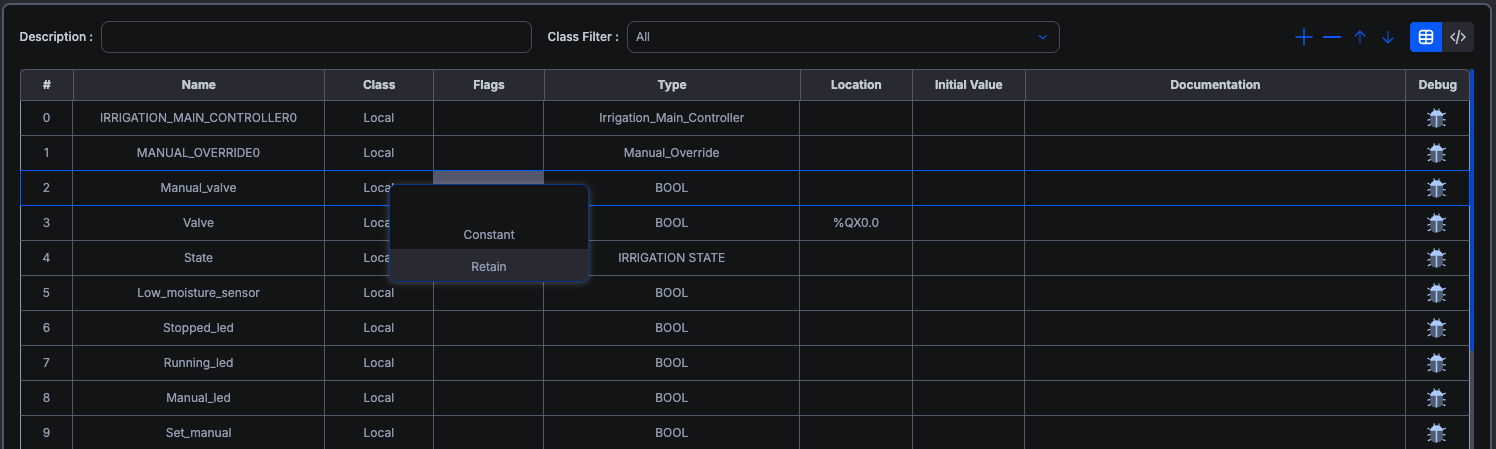
Retention is set per variable, in the Flags column of the variables table.
| Flag | IEC declaration | Meaning |
|---|---|---|
| (blank) | VAR | The default. The variable starts at its initial value on every start. |
| Constant | VAR CONSTANT | Fixed at build time and never written at run time. |
| Retain | VAR RETAIN | Preserved across a restart, if the device has somewhere to keep it. |
Constant and Retain are mutually exclusive, which is why this is one dropdown and not two checkboxes. The blank entry is a real choice rather than an empty cell: pick it to clear a flag you set earlier.
A Constant cannot have a Location. It is folded into the program when you build, so there is no storage behind it for an address to point at, and choosing the flag clears the Location cell.
Keep the retained set small. Every retained variable is written to storage on the interval you configure below, and that write budget is finite on most hardware. Retain the handful of values that genuinely have to survive.
Step 2: configure the storage
Persistent Storage lives under the Device branch of the project tree.
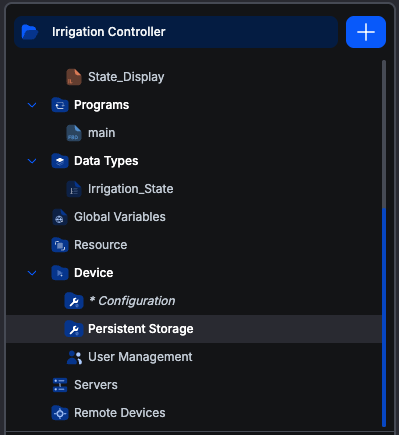
These settings are part of the project. You edit them while writing the program, they are saved with the project like everything else in it, and they reach the device when you upload. There is nothing to connect to and nothing to configure separately per machine: upload the project and its retention settings go with it.
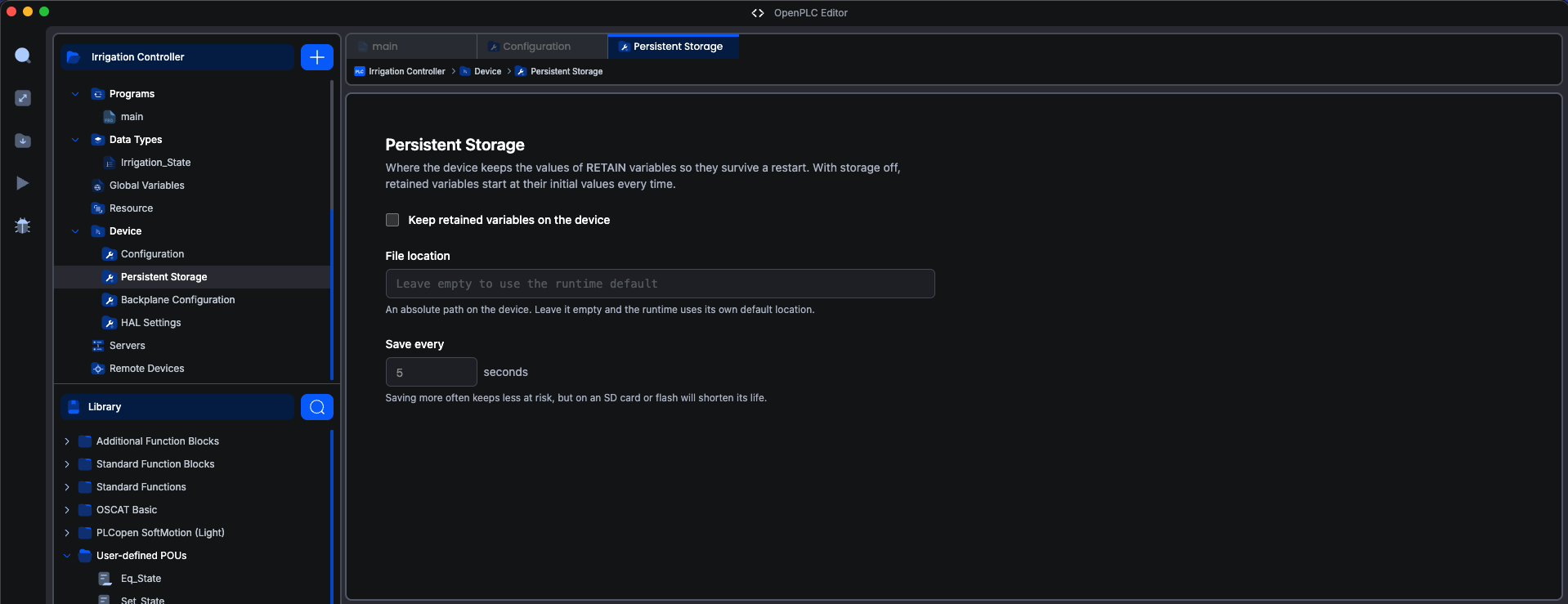
Keep retained variables on the device
Off by default. Until you turn it on, retention does nothing and every retained variable starts at its initial value. Turning it on enables the two fields below.
File location
An absolute path on the device. Leave it empty and the runtime uses its own default, which is the right answer almost always: the editor does not have to know how a particular device lays out its filesystem, and the default is a location the runtime already knows it can write to.
Set it only when you have a specific reason, such as pointing the store at a different partition.
Save every
How often the runtime commits the retained values, as a whole number of seconds between 1 and 3600, defaulting to 5. A value outside that range, or a fraction, is marked in red on the field, because a fraction would be rounded on upload and the runtime refuses anything out of range.
This number is a real trade-off, not a default to leave alone:
- A shorter interval risks less. The interval is the window of recent change a power cut can cost you. Save every second and you lose at most a second's worth.
- A shorter interval works the storage harder, which matters a great deal on the storage this screen writes to. See below.
Pick from how much loss the process can absorb. A parts counter that can be off by a few units after an outage is fine at 30 seconds. A totaliser feeding a billing record is not.
There is no Save button on this screen. The settings are part of the project, so they are kept when you save the project, and they are applied to the device the next time you upload.
Why this screen depends on the hardware
Where a device can safely keep values across a power cut is a property of the hardware, not of the program, and the answers differ enormously.
This screen configures the runtime's built-in file store: it writes the retained values to a file. That is the generic answer, and its virtue is that it works on anything with a filesystem, so retention is available on a plain OpenPLC Runtime v4 machine without anyone writing a driver for it first.
It is not the best answer where better hardware exists. Writing a file every few seconds wears the storage out. SD cards and eMMC have a finite number of write cycles, and a machine that saves every second for years will reach it. Purpose-built hardware avoids the problem entirely: battery-backed RAM, FRAM and similar non-volatile memory are designed to be written continuously and do not degrade the way flash does.
That is why the screen you see depends on the target you have selected:
| Target | What you get |
|---|---|
| OpenPLC Runtime v4 | This screen, configuring the built-in file store |
| A vendor board whose package handles retention | The vendor's own screen, matching the hardware they ship |
| OpenPLC Runtime v3, the Simulator, Arduino and baremetal boards | No screen. There is no built-in store for the project to point anywhere |
When a vendor package provides its own retention, the editor removes this screen and sends no storage configuration at all, which is what makes the runtime's built-in file store stand down and leaves the vendor's driver as the only thing handling retention.
The two go together on purpose. Removing only the screen would be worse than leaving it alone: the file store would keep running alongside the hardware one, both writing every scan, both appearing to work, and which set of values you got back after a power cut would come down to timing. Emitting nothing leaves exactly one store responsible.
You need do nothing for this. Select the target and the correct screen is the one you see.
Settings apply when you upload
Changing anything here changes the project. The device keeps using the settings it last received until you upload again. Upload, and the new settings are installed with the program.
The screen shows the setting, not whether retention is running
The checkbox reflects what you configured, not what a device is doing. A project can have storage switched on while nothing is being retained on the machine, which is what you see when:
- the program declares no retained variables. There is nothing to store, so the store never engages. This is by far the most likely case.
- the project has not been uploaded since you turned it on.
- the target's own driver has taken retention over, in which case the built-in store is off and the driver is doing the work.
The device log is what tells you the truth. After the PLC starts, the runtime reports how many bytes it is retaining and where they are being kept, or says that retained variables will start at their initial values. Check the log after the first start following any change.
Changing the program discards the stored values, once
The runtime records the shape of the program's retained variables alongside the data. Add, remove, reorder or retype a retained variable and the stored bytes no longer describe the program that is loading, so they are not restored and those variables start at their initial values.
This is the correct outcome. Restoring bytes into a different set of variables would put arbitrary values into them. The runtime logs the reason, distinguishing a program change from a corrupt store.
Uploading the same program again keeps the values. Expect a single reset after any change to the retained set, and plan the first start after such a deployment accordingly.
If retained values are not surviving a restart
Work down this list:
- Is the variable's Flags cell set to Retain? An ordinary variable is never preserved.
- Is the checkbox on? Off is the default and a no-op until turned on.
- Have you uploaded since changing the settings? They travel with the program, so nothing reaches the device until you do.
- Did the program's retained variables change? Any change to the set discards the stored values once, as above.
- Check the device log after a start. This is the step that distinguishes "storage is not configured" from "the program retains nothing", which the screen itself cannot tell you apart.
- If you set a custom path, is it still valid? A path whose directory does not exist on the device is refused when the program is installed. Clear the field to fall back to the runtime's default.
Related
- The variables editor for the Flags column in context.
- Project compilation and Deployment to a vPLC for the upload that carries these settings.
- Global Variable Lists, whose list-level qualifier is preserved but never applied. Retention has to be set on a POU or Resource variable.
On This Page