Variables editor
The variables editor is the table at the top of every POU body. It lists each variable declared for that POU and lets you edit, add, remove, and reorder them. A toggle in the top-right corner switches between table mode (the default) and code mode (raw VAR ... END_VAR text).

Columns
| Column | Notes |
|---|---|
| # | Row index. Visual only, not editable. |
| Name | Identifier. Must be unique within the POU. IEC naming rules: a-z, A-Z, 0-9, _; can't start with a digit; case-insensitive in IEC matching. |
| Class | One of Local, Input, Output, In Out, External, Temp. For Python and C++ function blocks only Input and Output are offered. For globals (in the Resource editor) the class is always Global. See below. |
| Flags | Blank, Constant or Retain. The IEC qualifier the variable is declared under. See below. |
| Type | The data type. Base IEC scalars, user-defined types from the Data Types section, arrays, or function-block instance types. |
| Location | Optional IEC address (%IX0.0, %QW3, etc.) that binds the variable to a slot in the PLC's I/O image. Shown for Programs and Function Blocks. |
| Initial Value | Optional. Cold-start value. Defaults are FALSE for BOOL, 0 for numerics. |
| Documentation | Free-text. Surfaces in hover tooltips and the variable-picker autocomplete. |
| Debug | Per-row toggle. Variables marked for debug are streamed to the Debugger during a debug run. |
A class filter above the table (All / Local / Input / Output / InOut / External / Temp) hides rows of the other classes. View-only, the hidden variables stay declared.
Class
In IEC 61131-3, class describes a variable's role in its POU's interface. It answers "who can read or write this from outside the POU?", not "is this a physical pin?". The six classes:
| Class | IEC keyword | Meaning |
|---|---|---|
| Local | VAR | Internal to the POU. No outside caller touches it. The value persists across PLC scans in Programs and Function Blocks. The default for almost everything. |
| Input | VAR_INPUT | A parameter the caller passes in when invoking the POU. On a function block in LD/FBD, becomes a pin on the left side. The POU reads it; the caller writes it. |
| Output | VAR_OUTPUT | A value the POU computes for its caller. Becomes a pin on the right side of the FB. The POU writes it; the caller reads it via instance.output_name. |
| In Out | VAR_IN_OUT | Bidirectional. The caller passes a reference; the POU both reads and writes; the caller sees the changes after the call returns. In LD/FBD it becomes a single pin on the left side, marked ⟷, which takes one connection. |
| External | VAR_EXTERNAL | A reference to a Global variable declared in the Resource. The Location is inherited from the global, so it's not editable on this row. |
| Temp | VAR_TEMP | Like Local but reset to the initial value (or zero / FALSE) at the start of every scan. Programs and Function Blocks only. |
The first three (Input, Output, In Out) describe a POU's calling interface, they only mean something for functions and function blocks that other code calls. A Program is the entry point of execution, not something you call, so its interface variables aren't useful in the same way.
Local, External, and Temp are for variables a POU uses internally (or shares globally), independent of any caller. Physical I/O mapping is independent of class, it's done through the Location column, which is covered next.
Flags
Where Class says who may touch a variable, Flags says how it behaves. One value per variable, chosen from a dropdown:
| Flag | IEC declaration | Meaning |
|---|---|---|
| (blank) | VAR | The default. An ordinary variable, starting at its initial value on every start. |
| Constant | VAR CONSTANT | Fixed at build time, never written at run time. |
| Retain | VAR RETAIN | Preserved across a restart, provided the project has storage configured for it. |
Most variables carry no flag, so the cell is left blank rather than filled with a placeholder. The blank entry in the dropdown is a real choice: pick it to clear a flag you set earlier.
Constant and Retain are mutually exclusive, which is why this is one dropdown rather than two checkboxes.
A Constant cannot have a Location. It is folded into the program when you build, so there is no storage behind it for an address to point at, and choosing the flag clears the Location cell.
Retain on its own does nothing. The device also needs somewhere to keep the values, which is set up on the Persistent Storage screen, is part of the project, and is off by default.
Location, physical I/O mapping
The Location column binds the variable to a specific bit, byte, word, or register of the PLC's I/O image. It's independent of class, most variables that map to physical I/O are simply Local-class with a Location set.
Address format
code%I X 0.0
 │ │ │
 │ │ └── address (byte and bit for X; byte for B; word index for W/D/L)
 │ └──── size: X bit, B byte, W word, D double word, L long word
 └────── area: I input image, Q output image, M memory
| Prefix | Area | Use for |
|---|---|---|
%I | Input image | Variables your program reads that come from physical inputs |
%Q | Output image | Variables your program writes that drive physical outputs |
%M | Memory area | Variables that have no physical pin. Useful as working memory, or as the canvas Modbus / OPC-UA / S7Comm servers expose to external clients |
| Size letter | Width | Use with types |
|---|---|---|
X | 1 bit | BOOL |
B | 8 bits | BYTE, SINT, USINT |
W | 16 bits | WORD, INT, UINT |
D | 32 bits | DWORD, DINT, UDINT, REAL |
L | 64 bits | LWORD, LINT, ULINT, LREAL |
Bit addresses use byte.bit notation: %IX0.0, %IX0.7, %IX1.0 (rolls over to the next byte). See Modbus addressing for how these IEC addresses end up on the wire when an external client reads them.
Examples
codeName           Class  Type  Location
start_btn      Local  BOOL  %IX0.0
e_stop         Local  BOOL  %IX0.1
motor          Local  BOOL  %QX0.0
alarm_lamp     Local  BOOL  %QX0.1
process_temp   Local  REAL  %MD2
Each row is a normal Local variable that happens to be bound to a physical address (or, in the last case, a memory slot the Modbus server would expose).
Aliases, when the Location is set for you
Variables that come from a producer, a Modbus master remote device, an EtherCAT slave channel, a board pin-map on the desktop editor, have their Location written into the row by the alias registry, not by you. You see the resolved address in the table and reference the variable by name like any other. If the producer moves the underlying address, the row updates automatically on the next save.
If the producer goes away (you delete the remote device or the EtherCAT channel), the variable becomes orphaned. The editor marks the row with an amber warning glyph; the hover tooltip explains how to fix it (re-bind or remove).
Toolbar, adding, removing, reordering
Four icons in the top-right of the table:
| Icon | Action |
|---|---|
+ | Add a row. If a row is selected, the new one is inserted below and inherits its class + type. Otherwise it's appended to the end. |
− | Remove the selected row(s). If the variable is used in the body, references are flagged on the next compile (or, in graphical bodies, immediately). |
↑ / ↓ | Move the selected row up or down. Order matters when callers pass arguments positionally. |
Renaming a variable: double-click the Name cell, type, press Enter. The editor finds every reference in the bodies (textual and graphical) and updates them. For graphical-body references it opens a Rename Impact dialog listing every match before applying.
Changing class: click the Class cell and pick from the dropdown. If you switch to External, the Location is cleared (externals inherit from their global). If you switch from Local to any other class on a Function-Block variable, the Location is cleared (only Local carries an address).
Type picker
Click the Type cell. The dropdown groups available types:
- Base types: IEC scalars:
BOOL,BYTE,WORD,DWORD,LWORD,SINT,INT,DINT,LINT,USINT,UINT,UDINT,ULINT,REAL,LREAL,TIME,DATE,TIME_OF_DAY,DATE_AND_TIME,STRING,WSTRING. - User data types: types you've defined in the project's Data Types section.
- Library types: types exposed by enabled libraries. Most commonly function block instance types (
TON,CTU,RS, etc.), declaring a variable asTONgives you aTONinstance you can call from the body. - Array: opens a sub-dialog to define an inline array (
ARRAY[0..9, 0..3] OF INT). For arrays you reuse, define them in Data Types instead.
Table mode vs code mode
The toggle in the top-right of the toolbar switches between the two views. Both show the same variables; they're two ways of editing the same data.
Table mode is the spreadsheet-like default. Faster for individual edits, with typed inputs per column.
Code mode shows the raw IEC declarations in a Monaco editor, grouped by class as VAR_INPUT / VAR / VAR_OUTPUT / VAR_EXTERNAL / VAR_TEMP blocks.
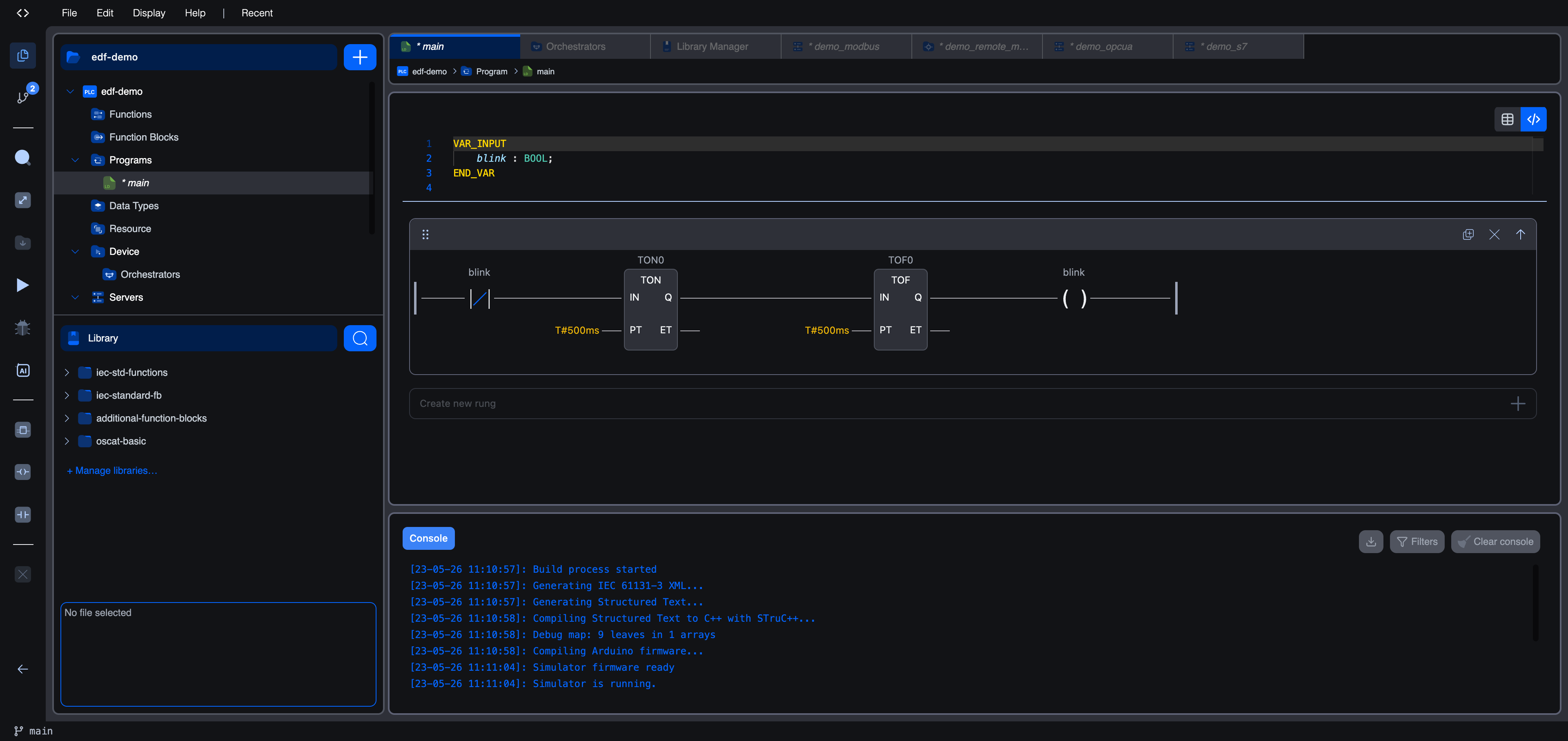
Code mode is the fastest path when you want to:
- Paste a chunk of declarations from another project.
- Bulk-rename with multi-cursor edits.
- Audit exactly what was declared without scrolling a long table.
When you switch back to table mode, the editor parses the text. Syntax errors prevent the switch and surface as red squiggles with hover messages.
Function-specific fields
A function POU has two extra fields above the variable table:
- Return type: the type of the value the function returns. Required (every IEC function returns something).
- POU description: free text describing what the function does. Shows up in the function picker and IntelliSense tooltips.
Function blocks and programs don't have these fields.
Globals
Project-wide variables live in the Resource editor (the Resource entry in the project tree). The Resource has a Globals section that looks and behaves identically to the per-POU table, but the class is fixed to Global. POU-level variables can then declare class External and reference a global by name.
See Global Variables for the full Resource walkthrough.
What's next
- Custom Data Types: define arrays, enumerations, and structures.
- Modbus addressing: how
%IX/%QX/%MWmap to wire-protocol addresses. - Debugger: what the Debug checkbox actually does.
On This Page