Device Info
The Device Info tab is the second tab in the Slave Device Editor. It is a read-only summary of the slave's identity. There is nothing to edit here. The information is pulled from the matched ESI XML the moment the slave was added to the bus, and is shown so you can confirm at a glance that the right ESI is in use.
The header at the top of the editor shows the slave name (e.g. EL1809 16Ch. Dig. Input 24V, 3ms) followed by the four tabs. Click Device Info.
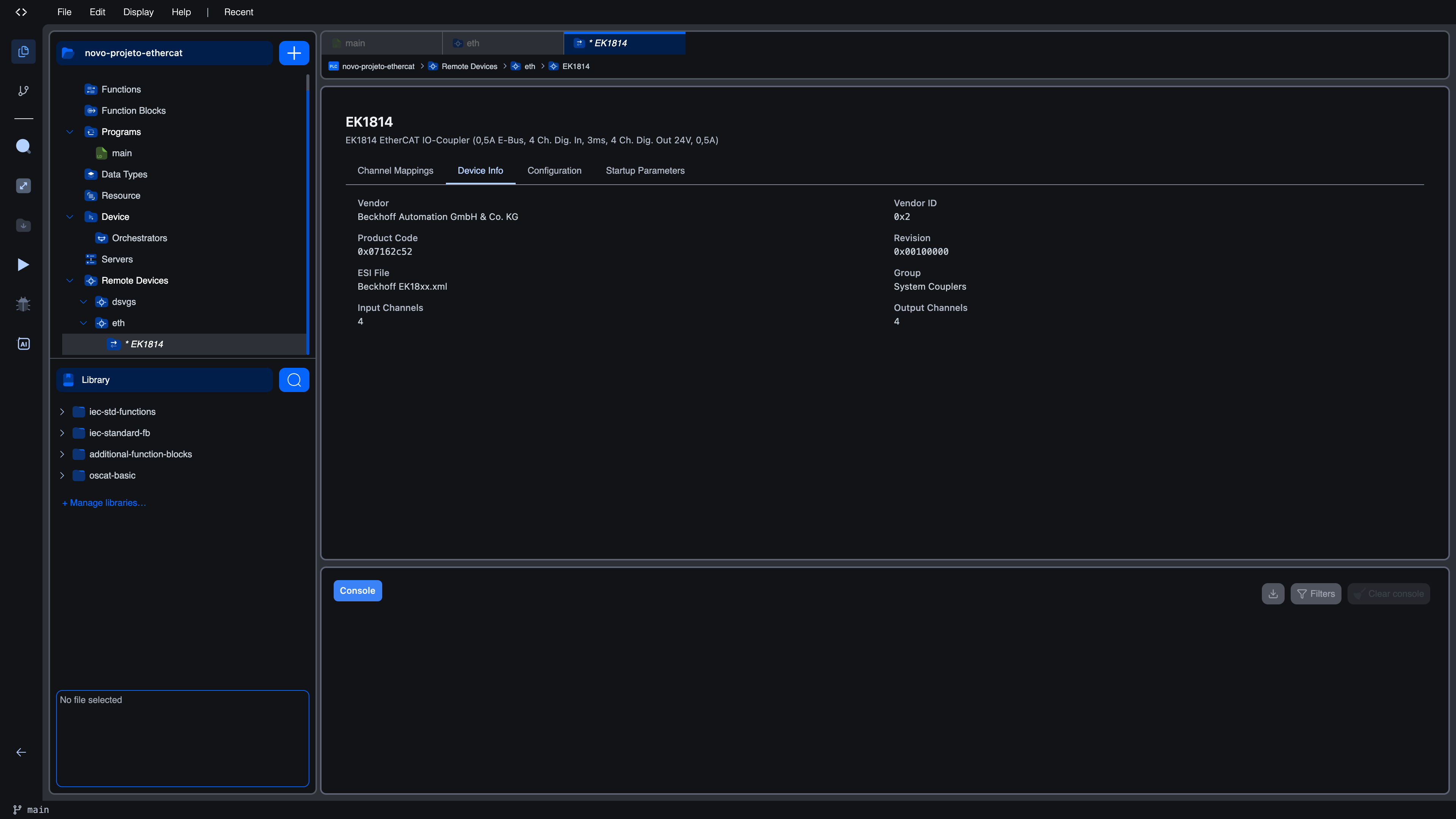
Fields
| Field | What it shows |
|---|---|
| Vendor | Vendor name as declared in the ESI XML, e.g. Beckhoff Automation GmbH & Co. KG. Reads Unknown if the ESI does not declare a vendor name. |
| Vendor ID | The 16-bit vendor ID in hex, e.g. 0x2. This is the value the slave reports on the wire and the value the editor uses to match scanned devices to the repository. |
| Product Code | The 32-bit product code in hex, e.g. 0x07113052. Together with the vendor ID and revision, this uniquely identifies the slave model. |
| Revision | The 32-bit revision in hex, e.g. 0x00120000. Slaves with the same product code but different revisions may have different PDO layouts; the editor matches revision exactly when it can. |
| ESI File | The filename of the ESI XML in the repository that describes this device, e.g. Beckhoff EL1xxx.xml. Reads Not found if the linked ESI is no longer in the repository (for example because it was removed). |
| Group | Optional group name from the ESI XML, e.g. Digital Input Terminals (ED1xxx, EL1xxx). Only shown when the ESI declares a group. |
| Input Channels | Number of input channels (TxPDO entries) the ESI describes for this device. |
| Output Channels | Number of output channels (RxPDO entries) the ESI describes for this device. |
Why this is useful
There are two situations where Device Info matters in practice:
- Confirming the matched ESI. When you add a slave from a scan, the editor picks the best matching ESI from the repository. Device Info shows you which file it picked. If the ESI File does not look right (for example you uploaded a newer version that should have matched), check the Repository tab and re-add the slave.
- Reading the channel counts. Before opening Channel Mappings on a complex slave (analog terminals, drives, multi-axis encoders), Device Info gives you a one-line summary of how many input and output channels you should expect to see in the mapping table.
If the ESI File column reads Not found, the slave's matched ESI has been removed from the repository. The configured slave is still saved in your project. Its channel mappings, configuration, and SDO writes are all preserved. But the editor cannot show fresh channel definitions until you re-import the ESI.
What's next?
- Channel Mappings to map this slave's channels onto IEC variables
- Configuration to tune startup checks, timeouts, watchdog, and distributed clocks
- Startup Parameters to write SDO values before the slave goes operational
On This Page