Members directory
The forum has a public Members directory, a leaderboard-style view of everyone with a forum account.
Open it from the forum home by clicking Members in the top navigation.
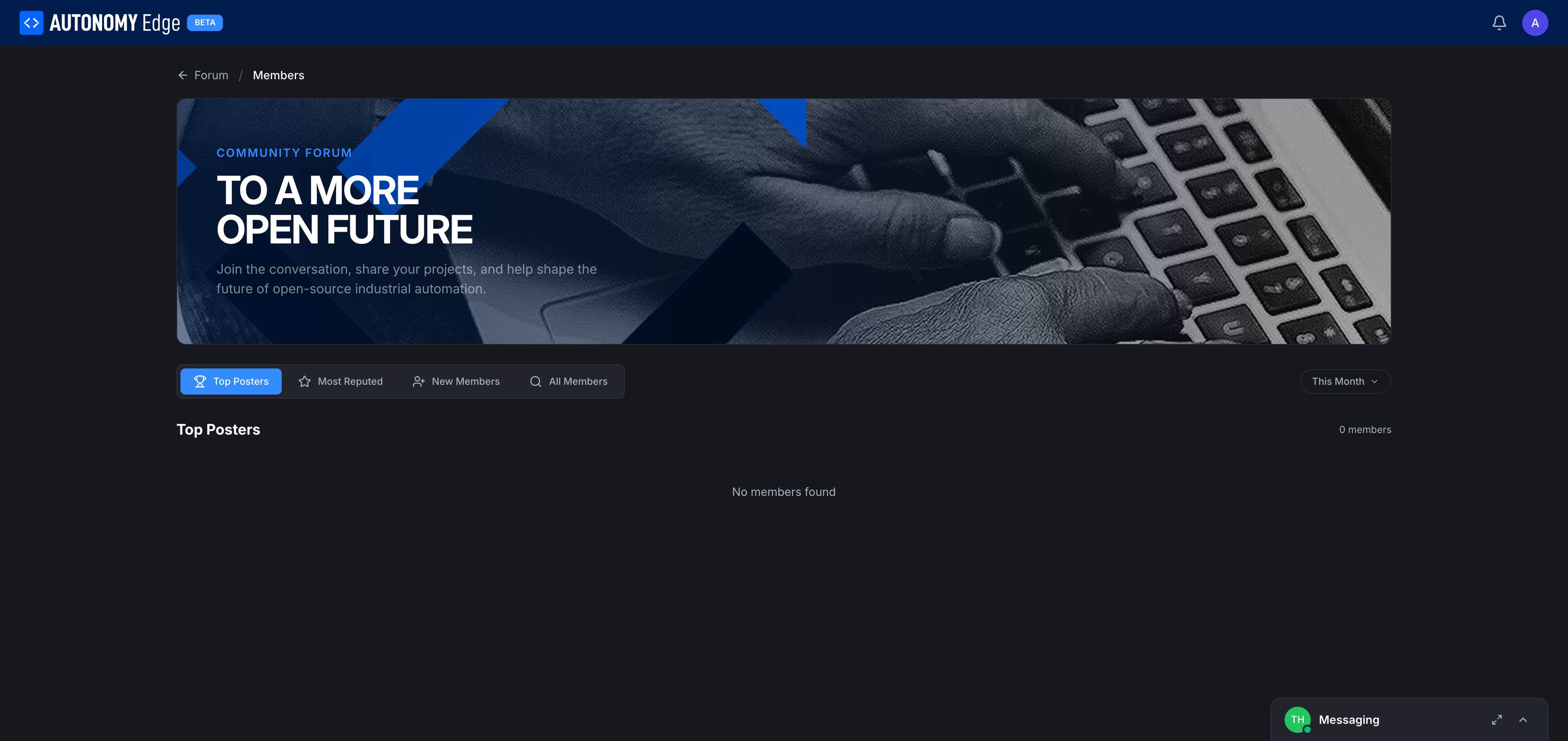
Tabs
Across the top:
- Top Posters (default): members with the most posts in the selected period.
- Most Reputed: members with the highest reputation score. Reputation comes from upvotes received on posts.
- New Members: most recent signups, newest first.
- All Members: full list, default sort by name.
Tabs are bookmarkable via URL parameters.
Time-window selector
Top right of the table is a This Month dropdown. Other options:
- This Week
- This Month (default)
- This Year
- All Time
The selected window applies to Top Posters and Most Reputed. New Members and All Members ignore the window.
What you see for each member
Each row shows:
- Avatar (clickable → profile).
- Display name and @username (clickable → profile).
- Member title (if they've earned one, e.g. Regular, Trust Level 2).
- Post count for the period.
- Reputation total.
- Joined date.
- (Some rows show extra badges for moderators, admins, or Patreons.)
A Message action appears on hover (or as part of the row's overflow menu), opens a DM to that person. See Messaging.
Why use the directory
- Find an expert. If you're stuck on EtherCAT, sort by Top Posters in OpenPLC Hardware (if a category filter ships) or just scan reputed posters and DM them.
- Greet new members. New Members tab is a friendly place to welcome people. The platform values warm onboarding.
- Look up someone you remember from a thread. Faster than searching their post for their name.
Sorting and search
- Click a column header to sort by that column.
- Search by name/username with the search field above the table (when populated).
Privacy
- Every signed-in user is visible in the directory by default.
- There isn't a "hide me from the directory" toggle today. If you want to be invisible, the only option is not to post, once you post, you appear.
Where to next
- Open someone's profile → click their avatar or name in any row.
- DM someone → hover row → Message, or use their profile's Message button.
- Read what they've posted → their profile's posts list.
On This Page