Messaging
The forum has built-in direct messaging, one-to-one and group chats with anyone on the platform. It's the right tool when a conversation doesn't belong in a public thread.
Open it from the forum's top navigation by clicking Messages.
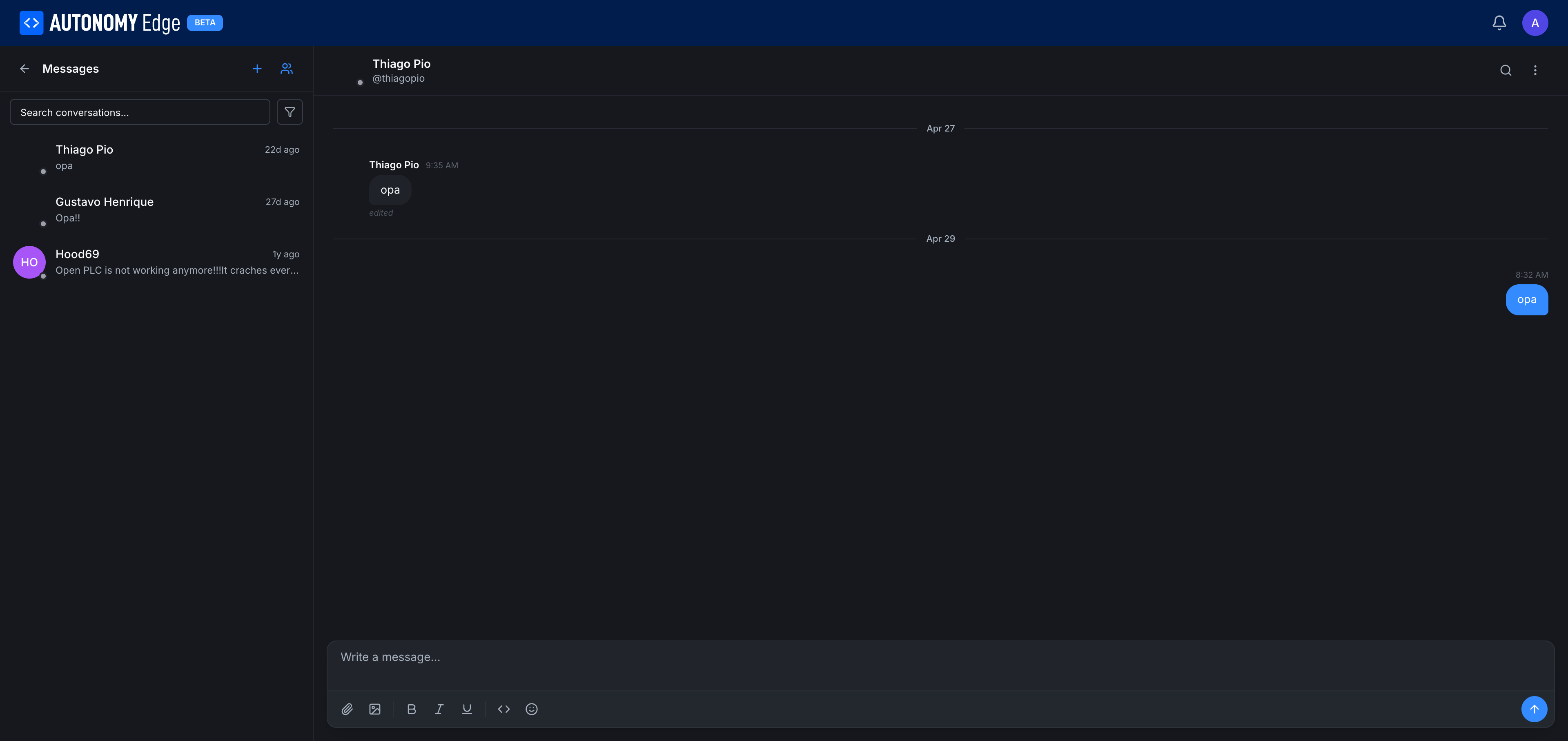
Layout
Two panes:
- Left pane: conversation list. A search box at the top, then the list of conversations sorted by most recent. Each entry shows the other participant's name (or a group label), the last message snippet, and a relative timestamp.
- Right pane: chat. The selected conversation. Other participant's name and online dot at the top. Message thread in the middle. Compose box at the bottom.
Starting a new conversation
From the conversation list, click the + icon near the top. The platform asks for one or more recipients (autocompleted by username). Pick:
- One recipient → a 1:1 DM.
- Multiple recipients → a group chat.
Once selected, the chat panel opens and you can send your first message.
You can also start a DM from a user's profile via the Message button (when allowed by the recipient's privacy settings).
Privacy and consent
Group chat invitations have a privacy setting: Allow group chat invitations in Settings → Privacy.
- On (default): anyone can include you in a group chat.
- Off: you stop appearing in the group-chat user picker and nobody can add you to a new group. Existing group chats are unaffected.
1:1 DMs are always allowed today; toggling the privacy setting only affects group chats.
Composing a message
The compose box at the bottom of the chat pane has a rich-text toolbar:
| Icon | Action |
|---|---|
| 📎 | Attach a file (any type). |
| 🖼️ | Attach an image (with a preview before sending). |
| B / I / U | Bold / italic / underline. |
<> | Inline code / code block. |
| 😀 | Emoji picker. |
Hit Enter to send. Shift+Enter inserts a newline.
Message states
Each message has a small status indicator:
- Sending: message hasn't been delivered yet (briefly).
- Sent: delivered to the platform.
- Delivered: pushed to recipient(s).
- Read: at least one recipient has opened the chat since you sent.
In a 1:1 chat the "read" indicator is straightforward. In a group chat, "read" means at least one of the other participants has opened the chat after you sent.
Editing and deleting
Hover a message you sent. The actions appear:
- Edit: within a short window after sending.
- Delete: removes the message for everyone. The thread shows a small "Message deleted" placeholder so nobody is confused by missing context.
You cannot edit or delete other people's messages.
Searching across conversations
The search box at the top of the conversation list does a substring search across:
- Other participants' names.
- Message contents (full text).
Tapping a result jumps to that message in the relevant conversation.
Notifications
You get a notification (in-app and email, controlled in Privacy settings) when:
- A new DM arrives in any conversation you're in.
- Someone adds you to a group chat (the first message in the new group; subsequent messages follow the per-conversation setting).
Limits
- Group size has a soft cap; group chats are intentionally small (typically up to 15–20 members) to keep conversations useful. Beyond that, a public forum thread or an organization is a better tool.
- Attachment size: typically up to 25 MB per file. For larger transfers, share a link.
Where to next
- Reply to threads publicly instead → Replying and reactions.
- Find someone to message → Members directory.
- Adjust who can DM you → Settings → Privacy.
On This Page