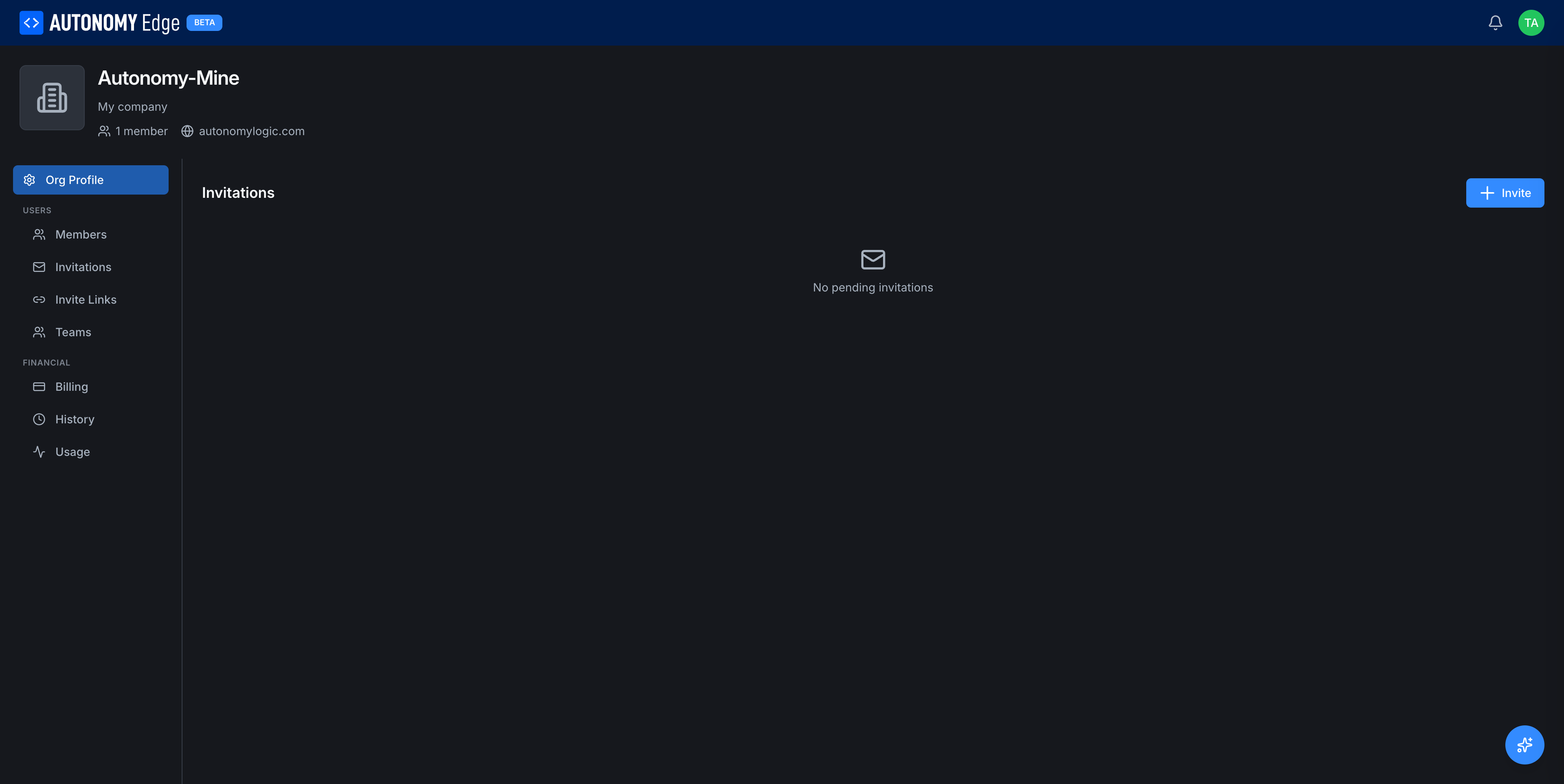
Invitations
Invitations are one-shot, email-addressed invites to join an organization. They're the simplest way to bring in a known person.
Requires the Teams, Education, or Enterprise plan. The tab is empty and read-only on Community.
To open it, click your avatar in the top-right → Organizations → select your organization → Invitations in the side-nav.
What an invitation does
When you invite someone:
- The platform sends an email to the address you provided with a join link.
- The invitation appears in the org's Invitations list, status Pending.
- When the recipient clicks the link and signs in, they're added to the org with the role you chose, and the invitation moves to Accepted.
Invitations expire after a configurable period (typically 7 days). Expired invitations can be re-sent.
Sending an invitation
Click Invite at the top right of the page. The dialog asks for the recipient's email and the role they should receive.
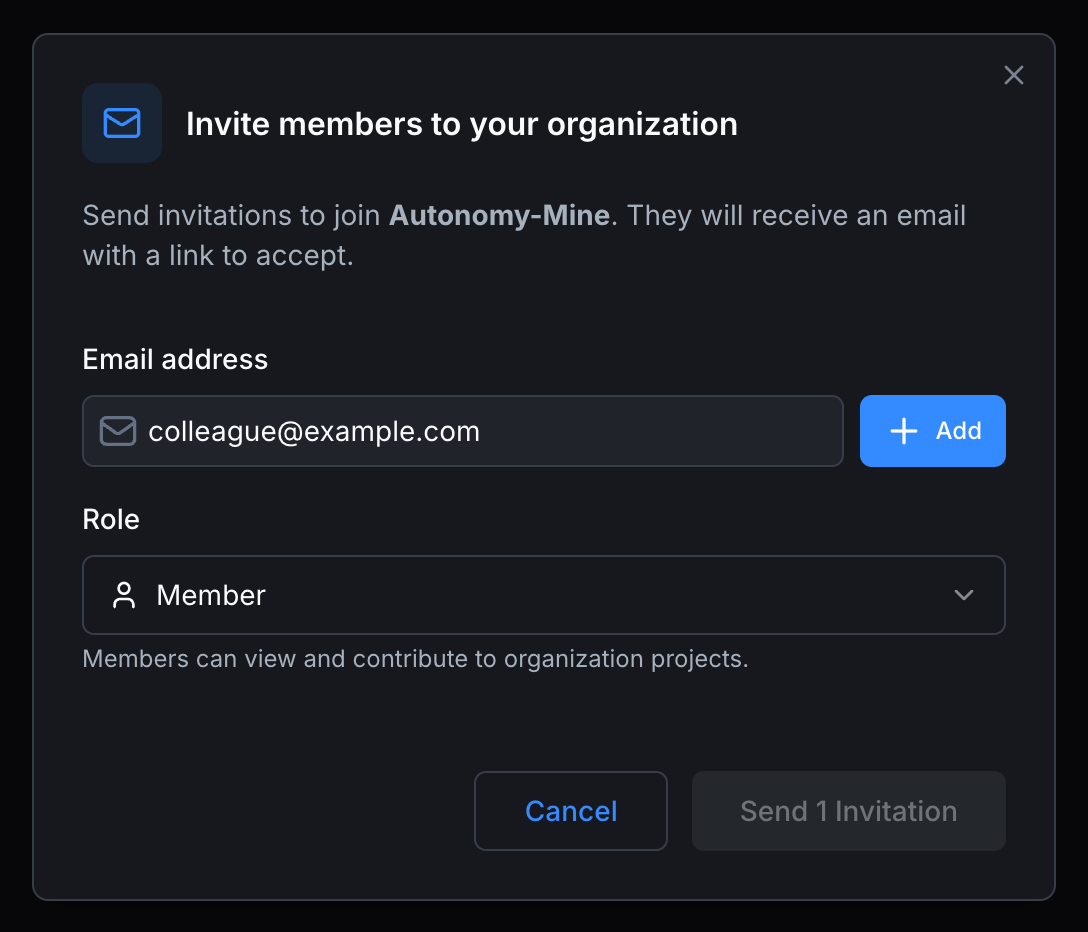
| Field | Required | Notes |
|---|---|---|
| Email address | Yes | The recipient's email. They don't need an Autonomy Edge account yet, the link prompts them to sign up if needed. |
| Role | Yes | The role they'll have on acceptance. Member is the safe default. Switch to Admin or Owner if you want them to manage the org from day one. You can also change it later from Members. |
A short description under the role dropdown explains what the role can do.
You can click + Add to queue multiple email addresses in a single batch. The Send button shows the count, e.g. Send 1 invitation or Send 3 invitations. Click Cancel to dismiss the modal.
For .edu accounts on the Education plan, the platform validates that recipient domains match yours. This is an Education-plan rule, not a global one.
The invitations list
When you have pending or accepted invitations, the list shows:
- Email address.
- Role they'll receive.
- Invited by (you, or another admin).
- Status: Pending, Accepted, Expired, Revoked.
- Sent date.
- Per-row actions menu.
Per-invitation actions
- Resend: sends the same invitation email again. Useful if the original got buried.
- Copy link: copies the join link to your clipboard, in case you want to deliver it through a different channel.
- Revoke: cancels the invitation. The link stops working immediately.
Common scenarios
- You sent the wrong role. Revoke and re-send with the correct role. Once accepted, change role from Members.
- The invitation expired. Resend it. The platform issues a new link with a fresh expiration.
- The recipient already has an account on a different email. Either accept on the invited email (they'll have two accounts) or revoke and re-invite to their primary email.
Where to next
- Once they're in, manage their role → Members and roles.
- Prefer a shareable URL for cohorts → Invite links.
- Organize people into sub-groups → Teams.
On This Page