Members and roles
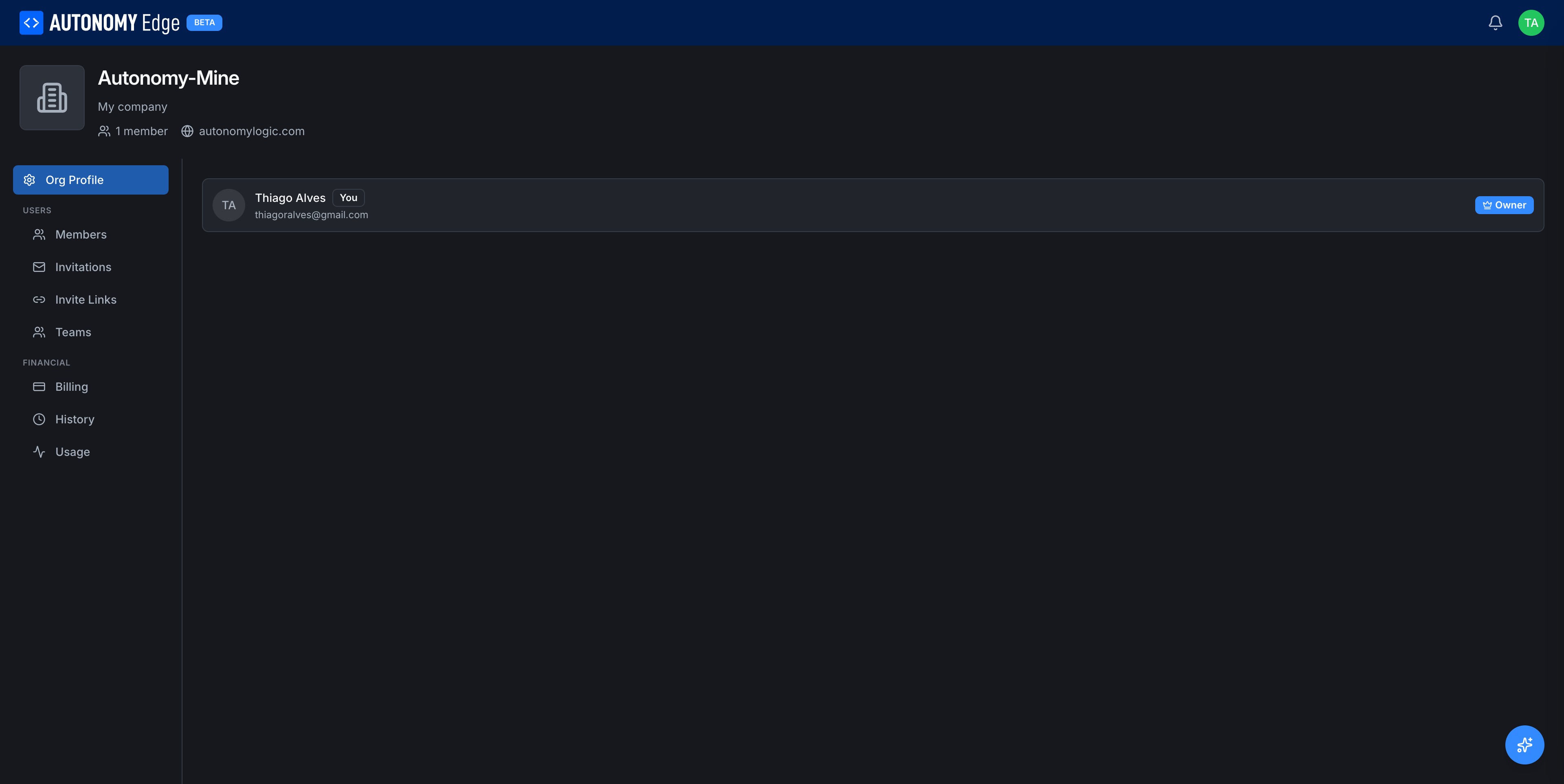
The Members tab lists everyone in the organization and lets owners and admins manage their roles.
Requires the Teams, Education, or Enterprise plan to invite anyone beyond yourself. The tab is read-only on the free Community plan.
To open it, click your avatar in the top-right → Organizations → select your organization → Members in the side-nav.
The three roles
| Role | Read projects | Write projects | Manage members | Manage org settings | Manage billing | Delete org |
|---|---|---|---|---|---|---|
| Owner | ✓ | ✓ | ✓ | ✓ | ✓ | ✓ |
| Admin | ✓ | ✓ | ✓ | ✓ | – | – |
| Member | ✓ | ✓ | – | – | – | – |
There's always at least one Owner. You can have multiple Owners. Owners can promote Admins to Owner, and Members to Admin or Owner.
What's on the page
For each member, a row shows:
- Avatar and display name (e.g. Thiago Alves) with a You badge if it's you.
- Email address (visible to admins and owners, hidden from members).
- Role badge on the right (Owner, Admin, Member).
- Joined date.
- Per-row actions menu (when you have permission to change it).
A toolbar at the top has a search box (filter by name or email) and quick role filters.
Changing a member's role
- Find the member in the list.
- Click the Role badge / dropdown next to their name.
- Pick Owner, Admin, or Member.
The change is immediate. The affected member gets a notification.
You cannot demote the last Owner. The platform requires at least one Owner at all times: promote someone else first, then demote yourself.
Removing a member
From the row's actions menu pick Remove from organization. A confirmation dialog appears. After confirming:
- The member loses access to all org projects, Devices, and vPLCs.
- Their commits and forum posts stay attributed to them.
- Their pull requests on org projects stay open (you can close them manually).
You can re-invite a removed member later from the Invitations tab.
Self-actions
A member sees a slightly different menu:
- Leave organization: voluntarily exit. See Leaving and deleting.
- View profile: open their own profile.
Audit trail
Member changes (added, removed, role changed) are recorded in the org's audit log and surface in the History tab once that feature ships.
Where to next
- Invite new members by email → Invitations.
- Invite via a shareable URL → Invite links.
- Group members for project access → Teams.
On This Page