Managing orchestrators
Once an orchestrator is paired you can rename it, update its agent, or delete it. All of these live in the orchestrator card's 3-dot menu on the Orchestrators list.
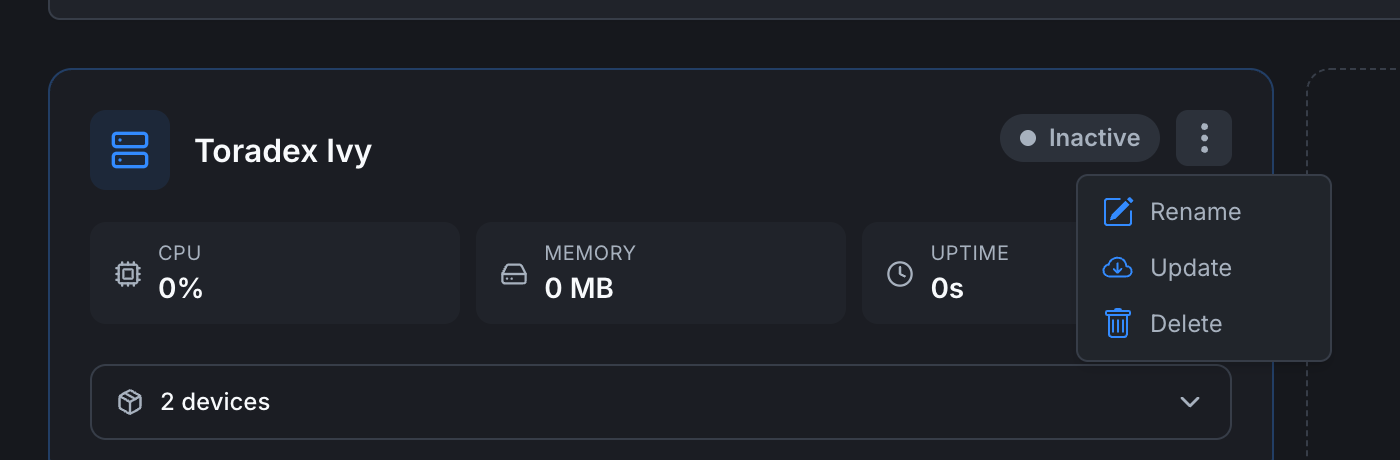
Renaming an orchestrator
- On the orchestrator card, click the ⋮ icon next to the status badge.
- Choose Rename.
- Enter a new name and confirm.
The name change is reflected immediately everywhere the orchestrator is shown (cards, detail page, breadcrumbs, dropdowns in the editor).
The orchestrator's ID and certificate are unchanged. The agent on the device continues to work without intervention.
Updating the agent
Choose Update from the 3-dot menu. The platform pushes a command to the agent to pull the latest image and restart itself.
During the update:
- vPLCs that are running keep running. They reconnect to the agent after the restart.
- The orchestrator's status briefly flips to Inactive while the agent restarts, then back to Active.
- The version shown on the orchestrator's Orchestrator tab updates to the new version.
You can also re-run the install command on the device (curl https://getedge.me | bash) to upgrade manually if the cloud-side Update action fails.
Deleting an orchestrator
- 3-dot menu → Delete.
- Confirm the dialog. You may need to type the orchestrator's name to confirm.
Deletion permanently removes:
- The orchestrator entry and its certificate.
- All vPLC device entries associated with it.
- Any historical metrics for that orchestrator.
It does not automatically uninstall the agent on the device. If the device is still running the agent, it will keep retrying to connect with stale credentials and fail. Either:
- Uninstall the agent on the device (
curl https://getedge.me | bash -s -- --uninstall), or - Pair the device with a new orchestrator entry by running the install command again.
Disconnecting temporarily
There isn't a "pause" action today. To temporarily disconnect:
- Stop the agent container on the device (
docker stop orchestrator-agent), the orchestrator goes Inactive in the web app. - Start it again (
docker start orchestrator-agent), status returns to Active within a few seconds.
vPLCs that were running before the agent stopped keep running. They reconnect to the agent on restart automatically.
Moving a vPLC between orchestrators
Not supported today. The vPLC entry is bound to its parent orchestrator. To migrate workload:
- Create a new vPLC on the destination orchestrator (Creating a vPLC).
- Deploy the same project to it from the editor.
- Delete the original vPLC from the source orchestrator.
Where to next
- Add devices to a renamed orchestrator → Creating a vPLC.
- Check on uptime and metrics → Orchestrator detail.
- Connection issues → Orchestrator not connecting.
On This Page