Orchestrators list
The Orchestrators list shows every orchestrator under the current workspace, one card per orchestrator with live stats. Open it from the dashboard by clicking Manage orchestrators on the Orchestrators card.
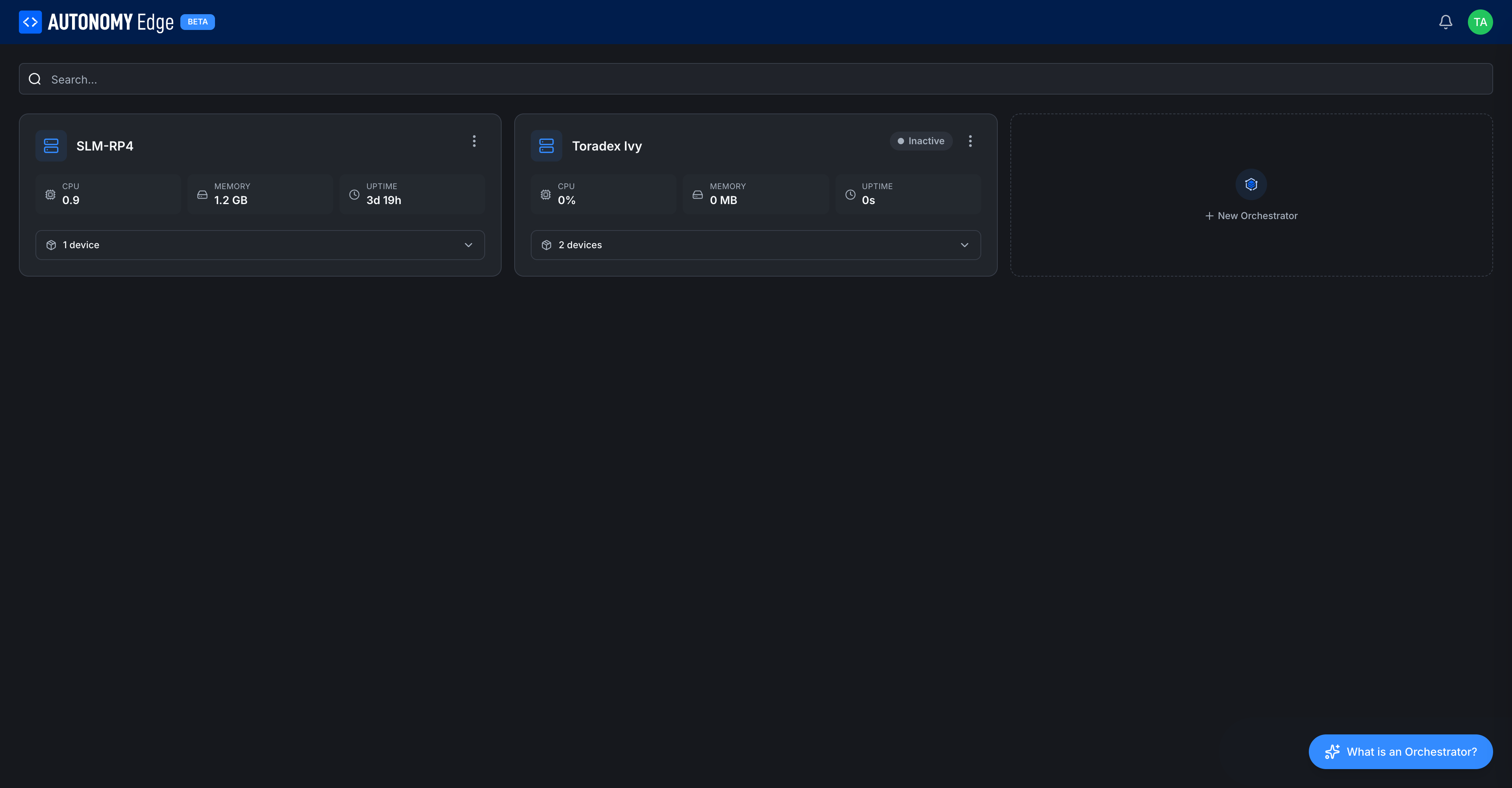
Toolbar
- Search…: filters cards by orchestrator name as you type.
- What is an Orchestrator? floating button (bottom right): opens a short explainer modal. Same content as the overview page.
Orchestrator card
Each card shows:
| Element | Description |
|---|---|
| Icon (left) | A rack icon, always blue. |
| Name | The name you gave when you created it. |
| Status badge | Inactive (gray dot), Active (green dot, sometimes called Connected). |
| 3-dot menu | Per-orchestrator actions: rename, regenerate registration ID, delete. See Managing orchestrators. |
| CPU | Live CPU usage on the device, in cores (load average) or percent. |
| MEMORY | Live memory usage. Displayed in MB or GB depending on size. |
| UPTIME | How long the agent has been running. Resets if the agent restarts. |
| N devices (expandable) | Number of vPLC devices attached to this orchestrator. Click to expand and see the list inline. |
Stats are blank or zero on an Inactive orchestrator because the agent isn't reporting anything.
Expanding the devices list
Click the N devices row at the bottom of any card to expand it inline:
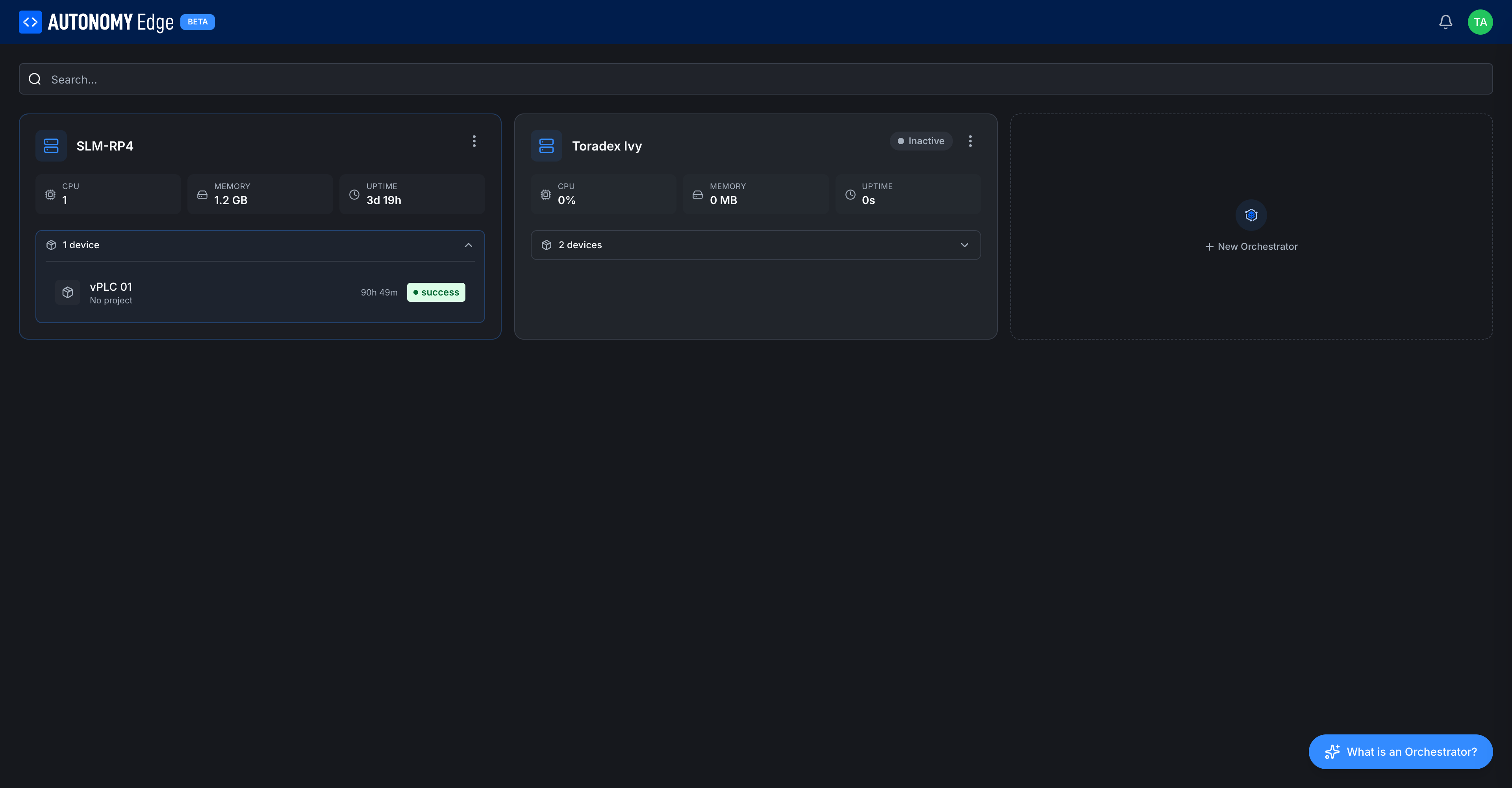
Each device row shows:
- Device icon.
- Device name (e.g. vPLC 01, plc1).
- Uptime.
- Project assignment (or No project).
- Status badge.
This is a quick way to see what's running on a given device without leaving the list. To see a single device's details, click its row, you'll land on the vPLC detail page.
Adding more orchestrators
The dashed + New Orchestrator tile to the right of your existing cards opens the install wizard. The number of orchestrators you can have at once depends on your plan, see Plan limits.
Sorting and filtering
Cards are listed in creation order. As more orchestrators are added, the search bar at the top is the fastest way to find one.
Where to next
- Click into a card → Orchestrator detail.
- Add another orchestrator → Installing the agent.
- Rename or delete one → Managing orchestrators.
- Add a vPLC → Creating a vPLC.
On This Page