Organization profile
The Org Profile tab is where you set the organization's public-facing identity: name, description, logo, and contact info.
To open it, click your avatar in the top-right, choose Organizations, and select the organization. Org Profile is the default tab.
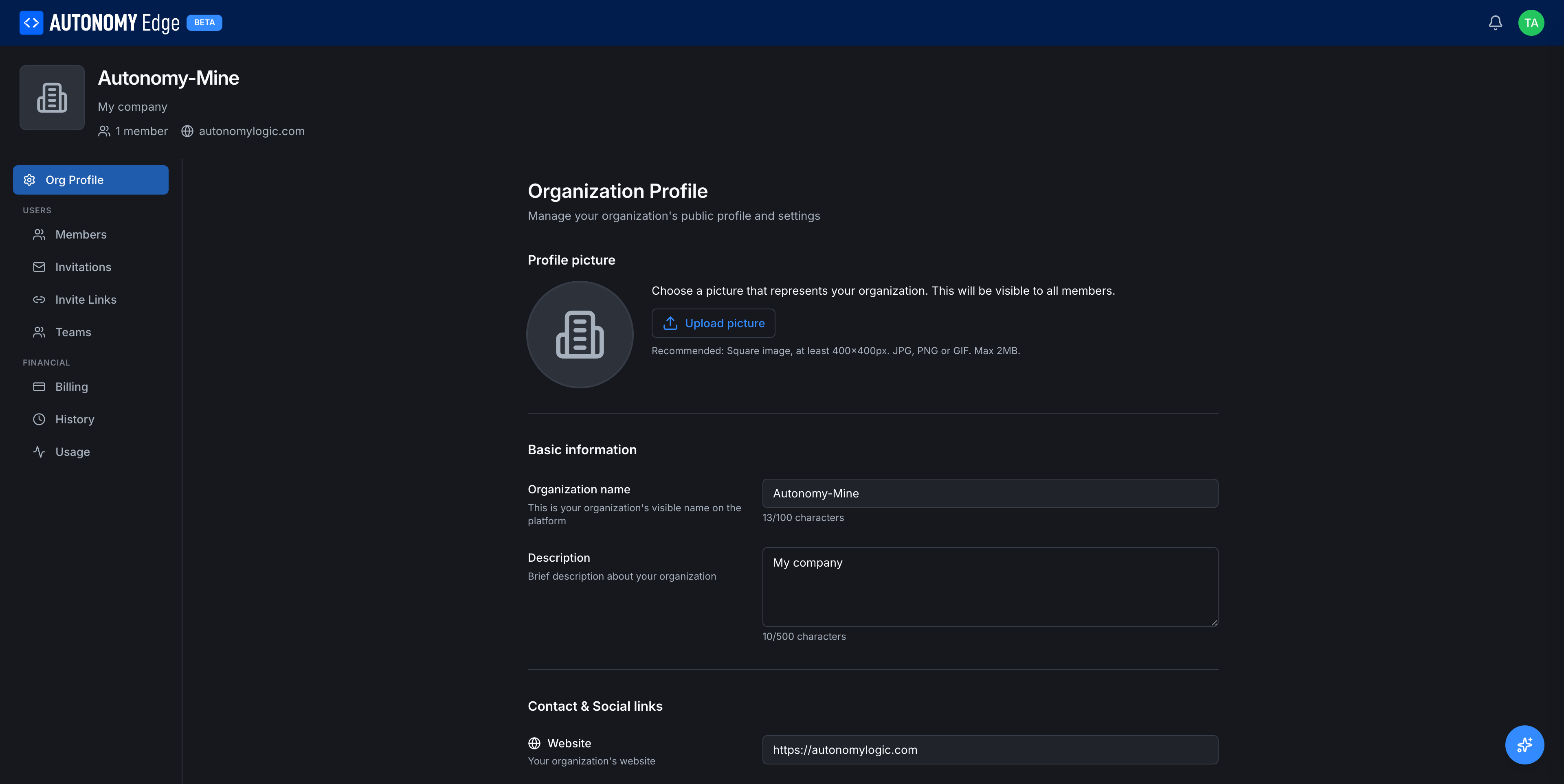
Page layout
A persistent left side-nav lists every org management section:
- Org Profile (selected)
- Users: Members, Invitations, Invite Links, Teams
- Financial: Billing, History
Items in the Users section are disabled on the free plan. Billing and History are always available.
Above the side-nav is a compact header with the org logo, name, description, member count, and website link.
Profile picture
A square image that represents the organization across the platform, on the dashboard's Organizations card, in member lists, in activity feed entries.
To upload:
- Click the Upload picture button next to the avatar placeholder.
- Pick a file from your computer.
- Crop if needed and confirm.
Requirements:
- Square image, at least 400×400 px.
- Formats: JPG, PNG, or GIF.
- Max size: 2 MB.
You can replace or remove the picture at any time.
Basic information
| Field | Required | Notes |
|---|---|---|
| Organization name | Yes | Up to 100 characters. Changing this does not change the organization's underlying handle (it's fixed once created). |
| Description | No | Up to 500 characters. Shown on the org profile and in some places like the org card. |
A character counter appears below each field.
Contact & Social links
Below the basic information section (scroll down to see them):
- Website: a URL. Rendered as a link on the org's public profile.
- Location: free-text city/country.
- LinkedIn URL: your org's LinkedIn page.
- X (Twitter) URL: your org's X account.
Leave any field blank to omit it from the profile.
Saving changes
There's no explicit save button per field; each section has its own save action at the bottom. The platform autosaves nothing, make a change, click Save, and the change is persisted. If you navigate away with unsaved changes, the platform warns you.
Who can edit
- Owner: full edit.
- Admin: full edit.
- Member: read-only. The form fields are visible but disabled.
Where to next
- Manage who's in the org → Members and roles.
- Invite new members → Invitations, Invite links.
- Set up billing → Org billing.
- Delete the org → Leaving and deleting.
On This Page