Importing and forking
You don't always start from a blank project. Sometimes you have an existing OpenPLC project on disk, sometimes you want to build on top of someone else's public project. Autonomy Edge supports both.
Importing an existing project
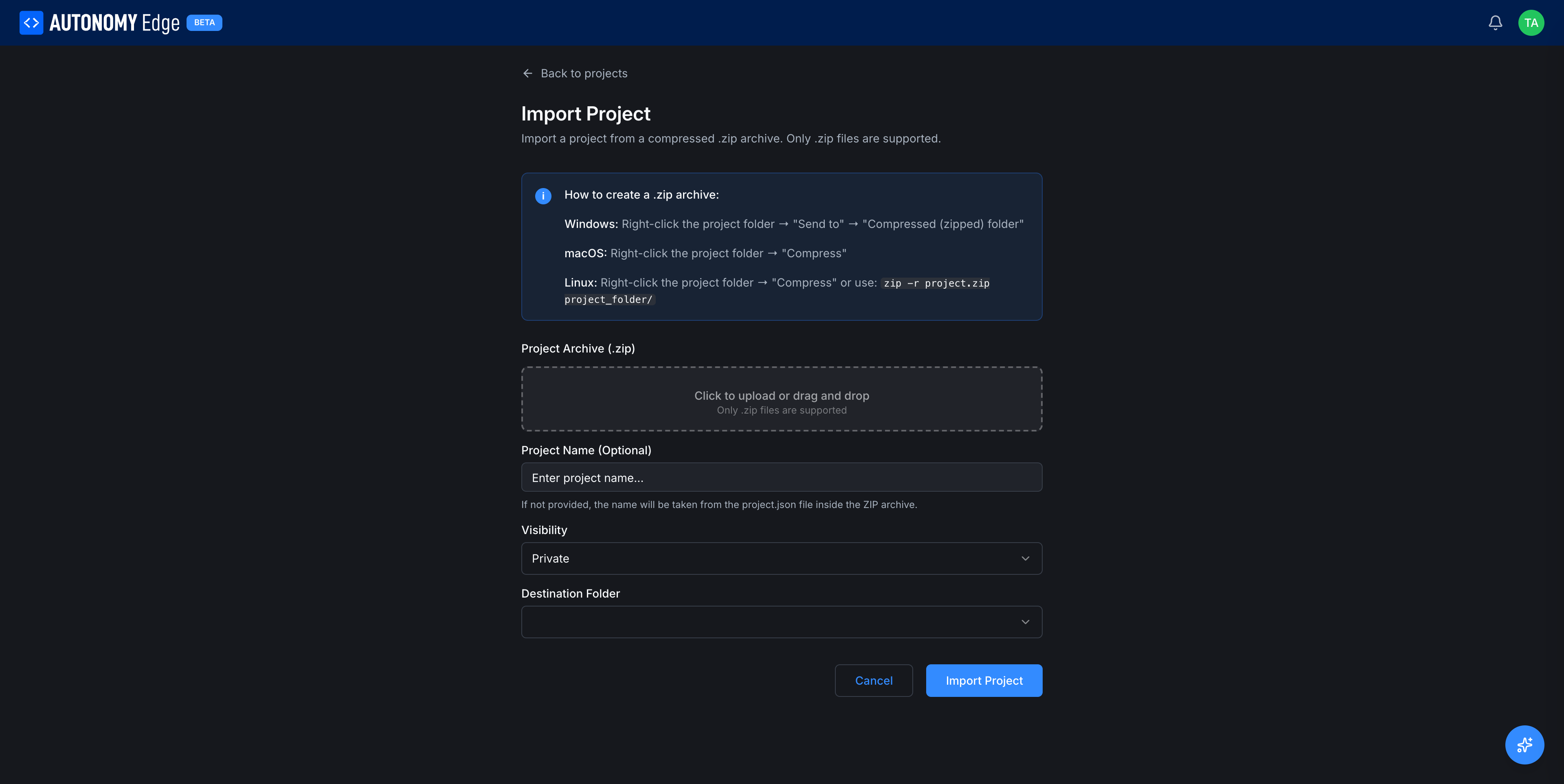
From the projects list, click Import Project at the top right. The platform navigates to a dedicated Import Project page.
Preparing the .zip archive
The platform accepts compressed .zip archives only. A short helper box at the top explains how to create one:
- Windows: right-click the project folder → Send to → Compressed (zipped) folder.
- macOS: right-click the project folder → Compress.
- Linux: right-click the project folder → Compress, or run
zip -r project.zip project_folder/.
The zip should contain a project folder with the standard layout (programs/, functions/, function-blocks/, devices/, project.json).
Fields
| Field | Required | Notes |
|---|---|---|
| Project Archive (.zip) | Yes | Click the dashed area to pick a file, or drag-and-drop. Only .zip is supported. |
| Project Name (optional) | No | Leave blank and the platform reads the name from project.json inside the archive. Set a name here to override. |
| Visibility | Yes | Private or Public, with the same rules as the New Project wizard. |
| Destination Folder | Yes | Pick which folder in the projects list to place the import into. |
Click Import Project at the bottom right. The platform extracts the archive, validates the project structure, creates the git repository, and lands you on the new project's Code tab. The first commit is named Initial commit and is authored by Autonomy Edge.
Click Cancel to discard and return to the projects list.
What gets carried over
- All files in the standard project folders.
- The project's
project.json(language, cycle time, IEC settings). - Custom function blocks, custom data types, and library references.
What does not get carried over
- Any local git history. The import becomes a fresh single-commit project. (If you need to preserve history, push the original repository as a remote branch later via the editor.)
- Runtime users. These live on the vPLC, not in the project, and don't travel with the import.
- Local IDE preferences (color themes, window layout). These belong to the editor session, not the project.
Forking a public project
A fork is a copy of someone else's public project that becomes yours. You can edit a fork freely without affecting the original. Forks are the standard way to build on community projects and to contribute back.
To fork:
- Open any public project (yours or someone else's).
- Click the Fork action in the project header (top of the project page).
- Pick the workspace to fork into (your personal workspace or any organization you have permission to create projects in).
- The fork is created and you land on the fork's project page.
A forked project carries (Fork) in its name by default (e.g. Autonomy Factory (Fork)). You can rename it from the project page if you prefer.
Sending changes back upstream
After making changes on your fork, you can propose them back to the original project via a pull request. From your fork, open Pull Requests → + New pull request and pick the original project as the target. See Pull requests for the rest of the flow.
The original project's owner reviews and decides whether to merge. If they do, your contribution is in. If they decline, you keep the change on your fork and can continue from there.
Cloning via git
Under the hood every project is a git repository. The download icon on the project page downloads a zip of the current branch, but full git access (clone, push from a local checkout) is available for paid-plan workspaces. See your project's Settings tab for the clone URL once it's enabled.
Common scenarios
- Migrating from the OpenPLC desktop editor. Zip the project folder, then Import Project in Autonomy Edge.
- Trying out a community sample. Find a public project on someone's profile or in the dashboard feed, click Fork, and tweak.
- Sharing a private project across your two workspaces. A private project doesn't move automatically between your personal and organization workspaces. Download it from the project page, then re-import in the other workspace.
Where to next
- Open the imported/forked project → The project page.
- Push changes back to the original → Pull requests.
- Change who can see your fork → Visibility and sharing.
On This Page