Projects list
The projects list is where every project in a workspace lives. To open it, click Projects in the dashboard's left column (the + Manage Projects button on the Projects card), or use the View all link on that same card.
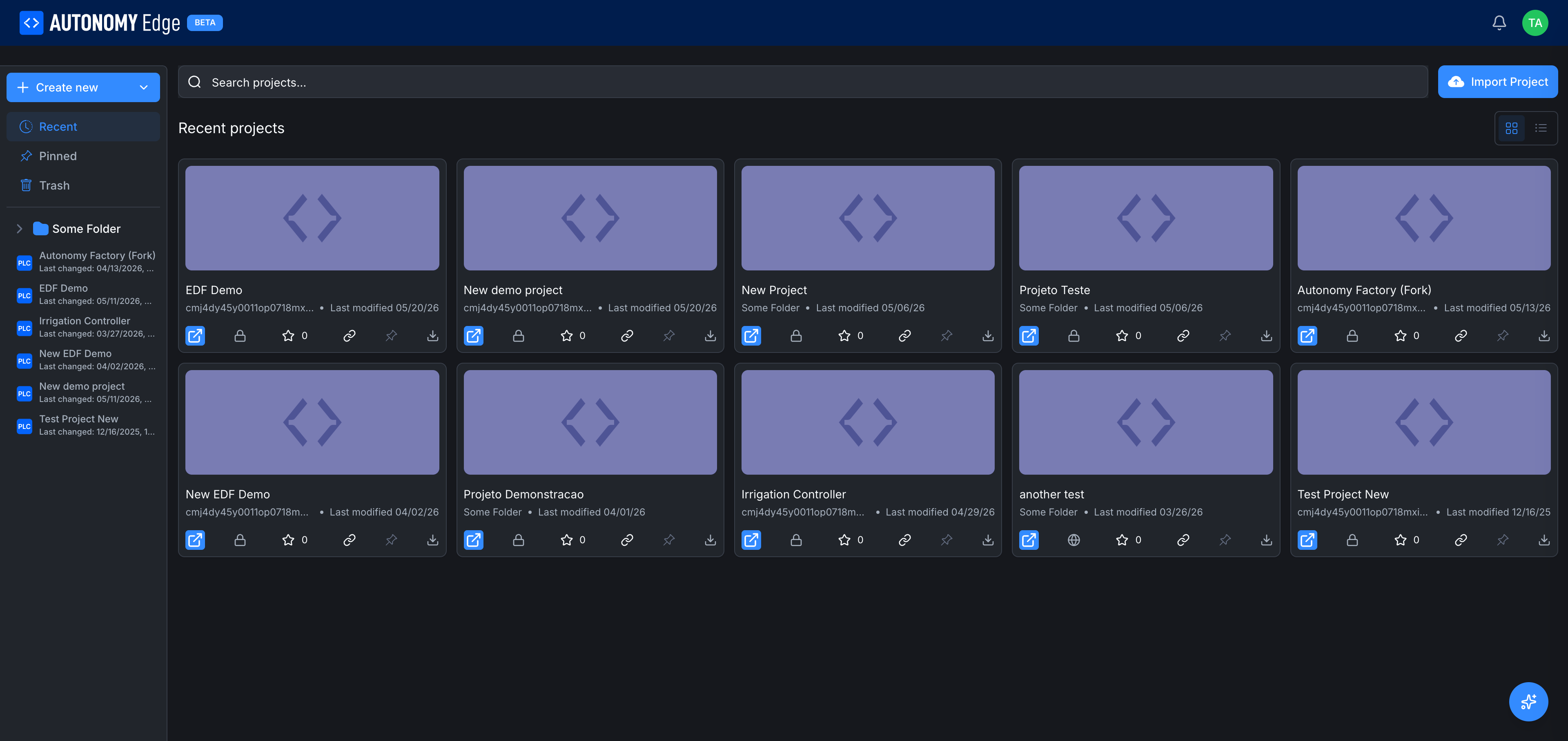
Left sidebar, views and folders
The left sidebar has two parts.
Views at the top:
- Recent: every project you have access to, sorted by last modified. The default view.
- Pinned: projects you've manually pinned for fast access. See Pinning and stars.
- Trash: deleted projects that haven't been purged yet. Items in trash can be restored individually or wiped all at once via Empty trash.
Folders below the divider:
- Each folder you've created (via + Create new → New Folder) shows up here with a chevron to expand. Inside a folder are the projects you've placed in it. Right-clicking a folder offers rename, delete, and move.
- The list of recently-changed projects sits at the bottom of the sidebar as a quick-access shortcut.
The URL keeps state. Switching views adds ?view=recent, ?view=pinned, or ?view=trash to the URL, so you can bookmark a particular view.
The Pinned view
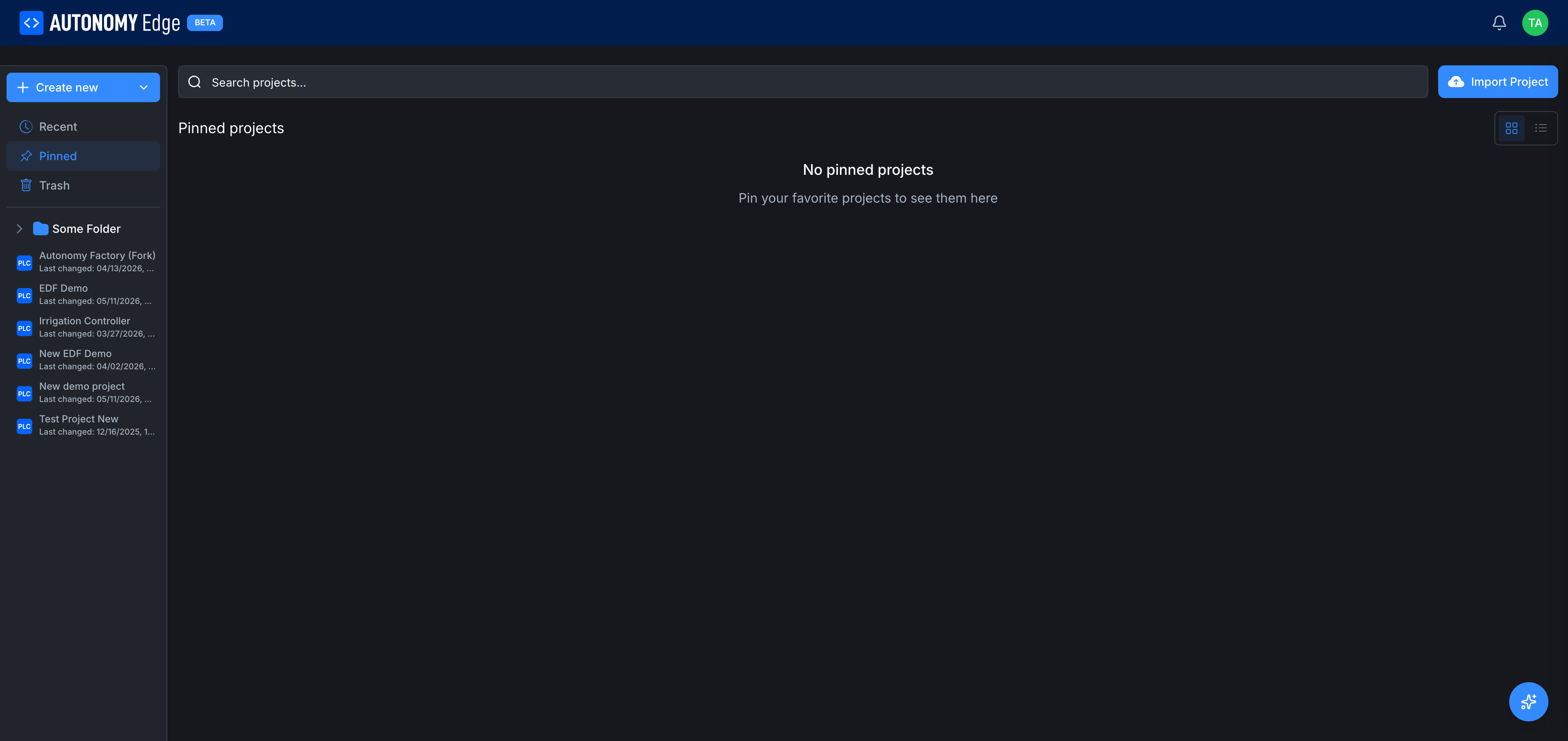
Empty state: No pinned projects. Pin your favorite projects to see them here.
The Trash view
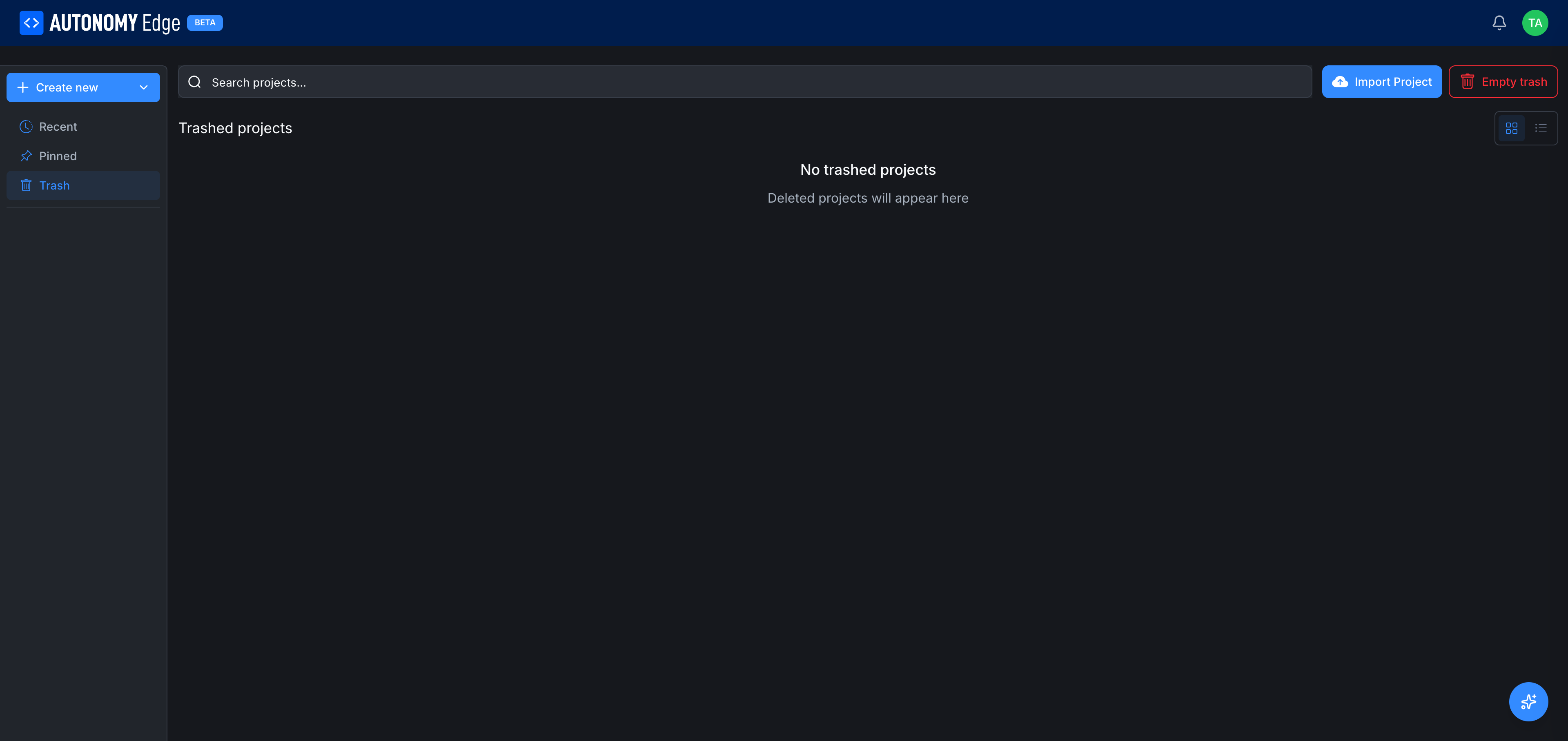
When trash contains items, each row gets restore and permanent-delete actions, and an Empty trash button appears in the toolbar. Permanent delete is irreversible.
Top toolbar
Across the top of the projects list:
- Search projects…: full-text search across the names and descriptions of projects in this workspace.
- Import Project: bring in an existing OpenPLC project from disk. See Importing and forking.
- + Create new: opens the dropdown with New Project, New Folder, and New Library. New Project launches the wizard described in Creating a project.
- Grid / List toggle (top right of the main area): switch the card layout. Grid is the default and best for quick visual scanning; List is denser.
A project card
Each project card in the grid view shows:
- Cover image / language icon (top of the card).
- Project name (e.g. EDF Demo, Irrigation Controller).
- Project ID: short hash, useful for distinguishing projects with similar names.
- Folder or "Some Folder": which folder it lives in.
- Last modified date.
- A row of action icons at the bottom of the card:
| Icon | Action |
|---|---|
| ![Open in editor] Code icon | Open the project directly in the editor. |
| Lock icon | Visibility, 🔒 for private, 🌐 for public. |
| Star ☆ with count | Star/unstar this project. |
| Link icon | Copy the project URL to clipboard. |
| Pin icon | Pin this project to your Pinned view. |
| Download icon | Download the project as a zipped archive. |
Clicking anywhere on the card body (not on an action icon) takes you to the project's Code tab.
Switching workspaces
Each workspace has its own projects list. To see an organization's projects, open the dashboard's Organizations card on the right and click the organization's name; you'll land on that organization's dashboard, where the Projects card behaves the same as on your personal one.
Where to next
- Open a project → The project page.
- Make a new one → Creating a project.
- Bring in an existing one → Importing and forking.
- Pin favorites → Pinning and stars.
On This Page