Settings → Security → Password
The Password section lets you change your account password.
To open it, click your avatar in the top-right, choose Settings, then expand Security in the left side-nav and click Password.
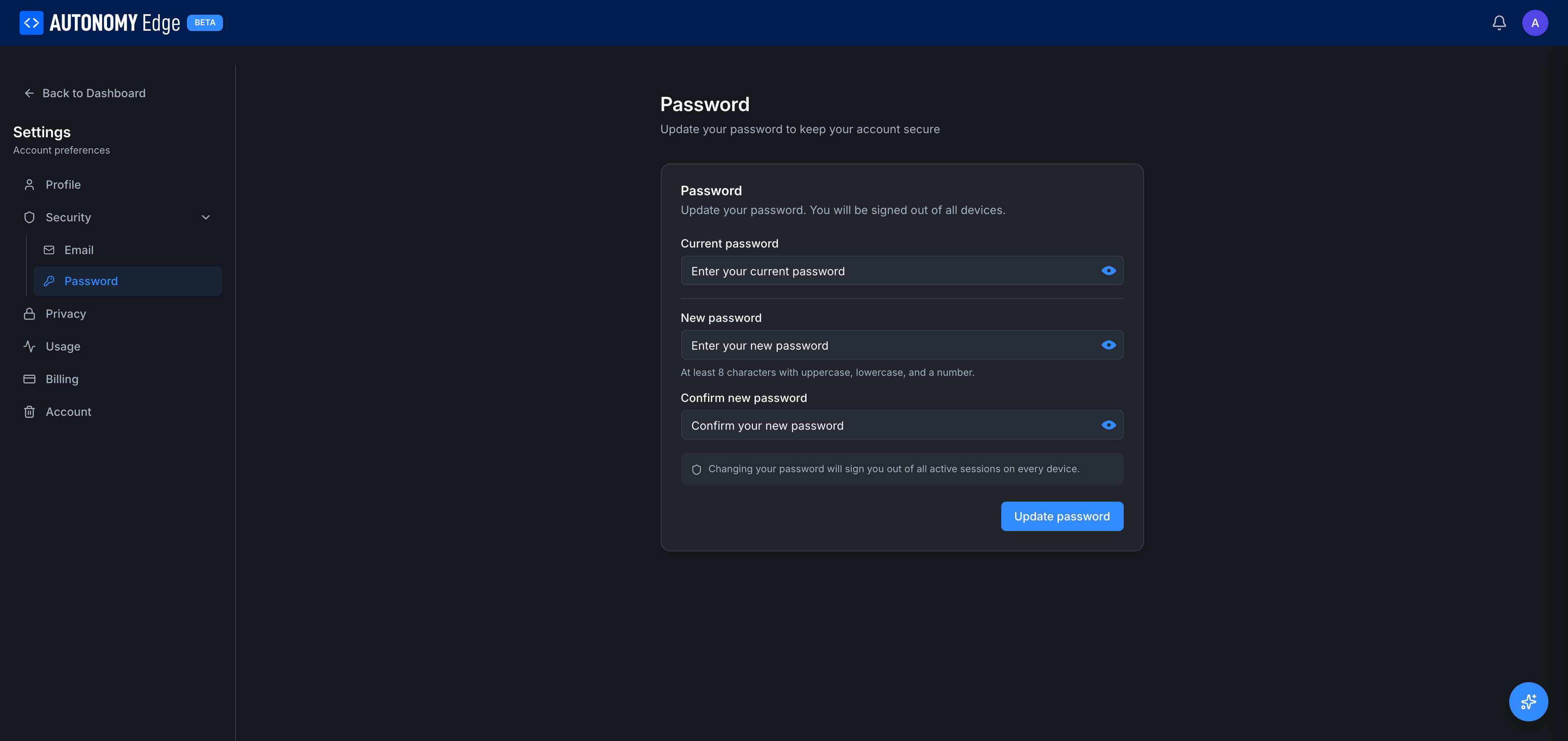
What you see
Three password fields and a notice:
- Current password: your existing password. Required for re-authentication.
- New password: what you want to change to.
- Confirm new password: type it again to catch typos.
Notice: Changing your password will sign you out of all active sessions on every device.
Password requirements
- Minimum 8 characters.
- At least one uppercase letter.
- At least one lowercase letter.
- At least one number.
The platform doesn't require symbols, but they're allowed and recommended. The "show password" eye icon next to each field lets you reveal the field while typing.
Changing your password
- Type the current password.
- Type the new password.
- Confirm it.
- Click Update password.
If all fields validate, the platform:
- Hashes and stores the new password.
- Signs you out of every active session, including the one you're on right now.
- Returns you to the sign-in screen.
Sign in with the new password to continue.
Forgot your password instead?
If you can't sign in because you don't remember your password:
- Sign out (if you're somehow signed in but want to reset).
- On the sign-in screen, click Forgot password?.
- Enter your email.
- Open the reset email, click the link, set a new password.
- You'll be signed in automatically.
This flow does not require knowing the current password, so it's the right path when you've actually forgotten.
SSO users
If you signed up through Apple, Google, or Microsoft SSO, you may not have a password at all. The Password tab in that case shows a notice that your account is managed through your SSO provider; password changes are made on their side, not here.
You can add a password to an SSO account from the Security section if you want fallback access, useful if you ever lose access to your SSO provider.
Where to next
- Change your email → Security → Email.
- Manage active sessions (when shipped) → look for a Sessions sub-tab under Security in a future release.
- Delete your account → Account.
On This Page