Editing your profile
The Edit Profile button on your profile takes you to Settings → Profile, where you change your name, username, bio, avatar, location, and time zone. You can also open the same page by clicking your avatar in the top-right and choosing Settings.
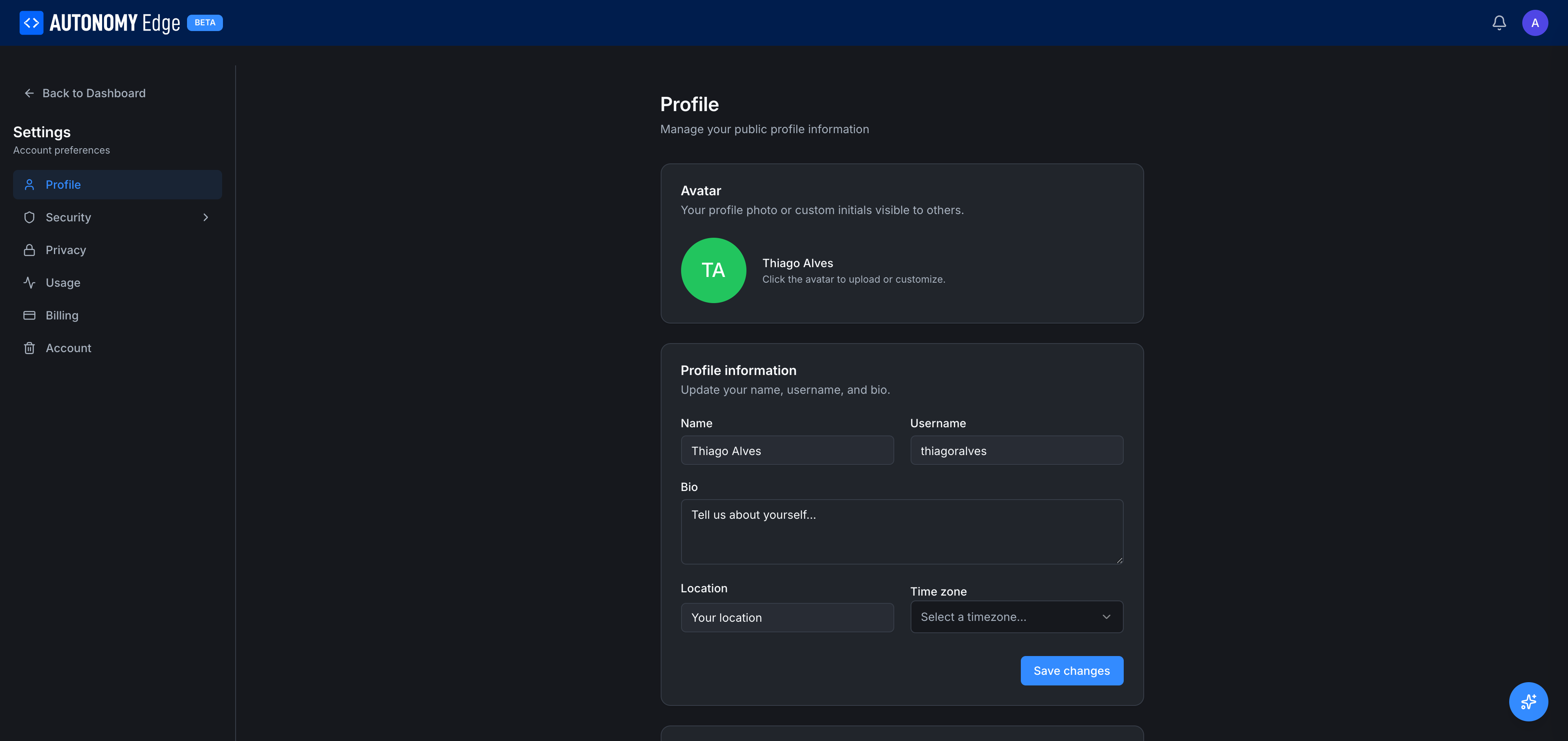
Avatar
A circle with your initials by default. To change it:
- Click the avatar to open the upload dialog.
- Pick a square image (PNG, JPG, or GIF). The platform will crop to a circle.
- Confirm. The new avatar appears immediately everywhere you're shown.
Max file size: 2 MB. For best quality, upload at least 400×400 px.
To remove a custom avatar and go back to initials, use the Remove action in the upload dialog.
Name
Free-text field. This is your display name, what most of the platform shows.
- Up to 80 characters.
- Real names work fine but aren't required.
- Visible publicly on your profile, commits, forum posts, DMs.
Username
The handle that identifies you across the platform: it shows next to your commits, replies, project cards, and anywhere else a user is mentioned.
- 3–30 characters.
- Allowed: lowercase letters, digits, hyphens, underscores.
- Must be unique across the platform.
- Changing it doesn't break existing links since your underlying identity is stable, but consider keeping it consistent so people can recognise you.
Bio
A short description of yourself.
- Up to 500 characters.
- Plain text only (no markdown today).
- Shown on your profile card and may appear in forum hover-cards.
Location
Free text. City and country are the convention but it's not validated. Visible on your profile.
Time zone
A dropdown of standard time zones. Pick yours so timestamps elsewhere (commit times, forum post times) can be shown in your local zone where applicable.
Saving changes
Each section has a Save changes button at the bottom. The platform autosaves nothing, make a change, click Save, and the change is persisted. If you navigate away with unsaved changes, the platform warns you.
Updating your email
Email is not in this tab. It lives in Settings → Security → Email. Changing your email has a 7-day cooldown for security.
Updating your password
Also not here. Settings → Security → Password.
Removing your account
The Settings → Account tab has the danger-zone delete action. Read that page before clicking, deletion is permanent.
Where to next
- Back to your profile → click Back to Dashboard at the top-left of the settings page, then choose My Profile from the user menu.
- Tune privacy → Settings → Privacy.
- Manage your account → Settings → Account.
On This Page