Settings → Usage
The Usage section shows your AI Credit Units (ACUs) and your current consumption against plan limits.
To open it, click your avatar in the top-right, choose Settings, then Usage in the left side-nav.
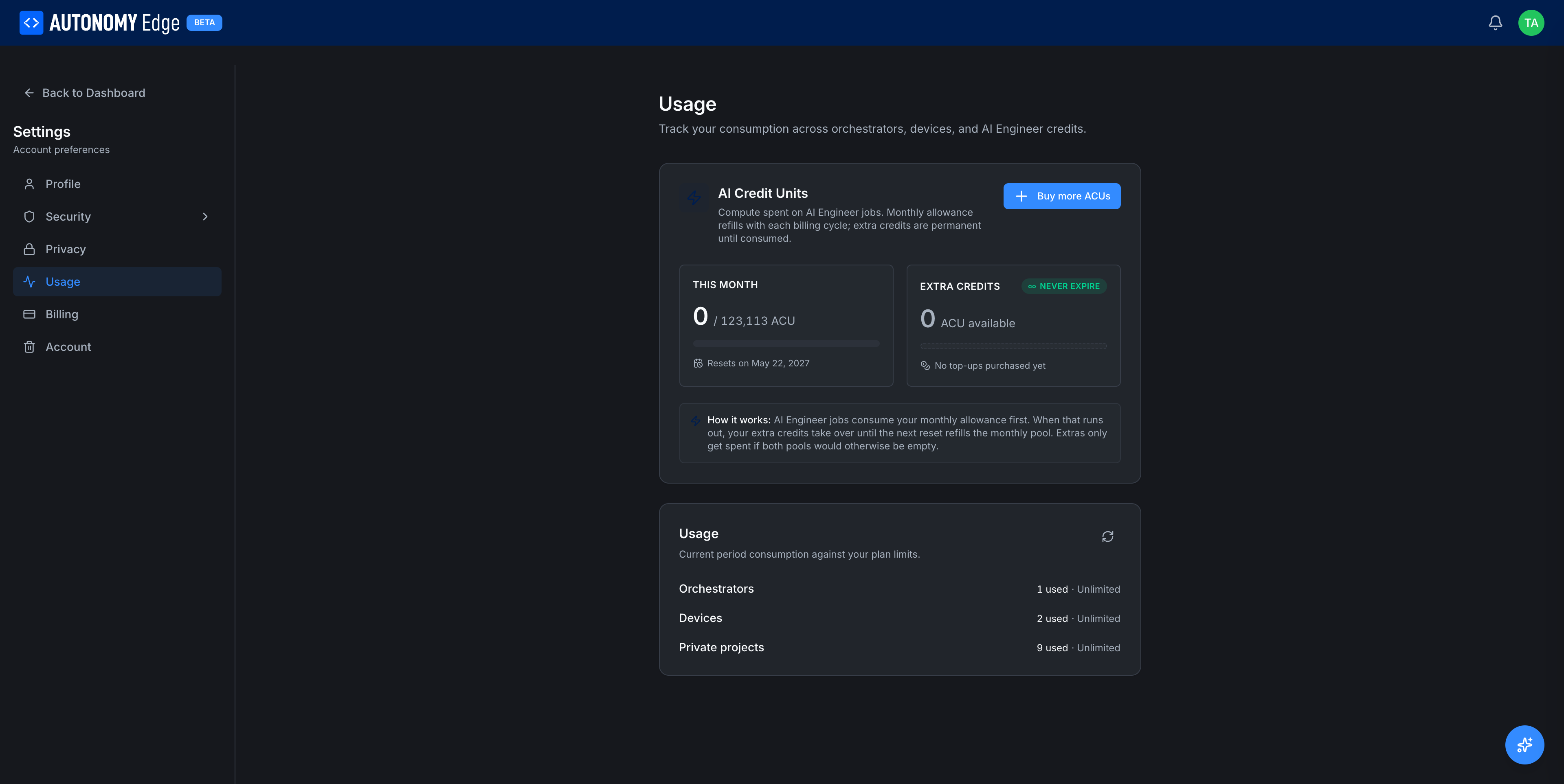
AI Credit Units (ACUs)
ACUs power the AI Engineer features, multi-step automation jobs, deeper code generation, longer context windows. They don't apply to the free AI Chat assistant.
Two pools:
This month
Your monthly allowance. Refills at the start of every billing cycle.
- {used} / {total} ACU: current consumption.
- Resets on {date}: next refill date.
- Progress bar shows percent consumed.
Unused monthly ACUs do not carry over. If you don't use them this cycle, they're gone.
Extra credits, never expire
A separate balance you've topped up with one-time purchases.
- {amount} ACU available: total extra credits.
- "Never expire" badge.
- "No top-ups purchased yet" if you haven't bought any.
Extra credits are consumed only after the monthly allowance is exhausted, so a casual user with a small monthly allowance + a stash of extras can pace themselves without surprises.
A + Buy more ACUs button (top right of the ACU card) opens a checkout dialog with packs of ACUs (typical packs: 1k, 5k, 10k, 50k).
How AI Engineer jobs consume ACUs
When you run an AI Engineer job:
- The job estimates how many ACUs it will need and shows you the estimate before running.
- On approval, ACUs are drained from This month first.
- If This month is depleted mid-job, the remaining cost comes from Extra credits.
- If neither pool covers the cost, the job is blocked with a "Plan limit reached" message.
Plan usage
Below the ACU card, a Usage section shows your consumption against plan-imposed quotas. Three bars:
- Devices: N / M used.
- vPLCs: N / M used.
- Private projects: N / M used.
A bar turns red when you've reached or exceeded the limit. If you exceed (typically because of a recent downgrade), existing items continue working but you can't create new ones until you're back under the limit.
A small refresh icon at the top-right of the Usage card forces a recount.
What the numbers mean
| Limit | Counts |
|---|---|
| Devices | The number of Device entries in your workspace (Active + Inactive). |
| vPLCs | The number of vPLC entries across all your Devices. |
| Private projects | Projects marked Private. Public projects don't count. |
Increasing limits
The fastest way to lift a limit is upgrading the plan.
- For your personal workspace, upgrade your personal plan in Settings → Billing or via Pricing.
- For an organization workspace, the organization needs its own plan; upgrade from the org's Billing tab.
Where to next
- Buy more ACUs → button at the top of the ACU card.
- Plan comparison → Pricing.
- What each plan limits → Plan limits.
- Subscription management → Settings → Billing.
On This Page