Security Profiles
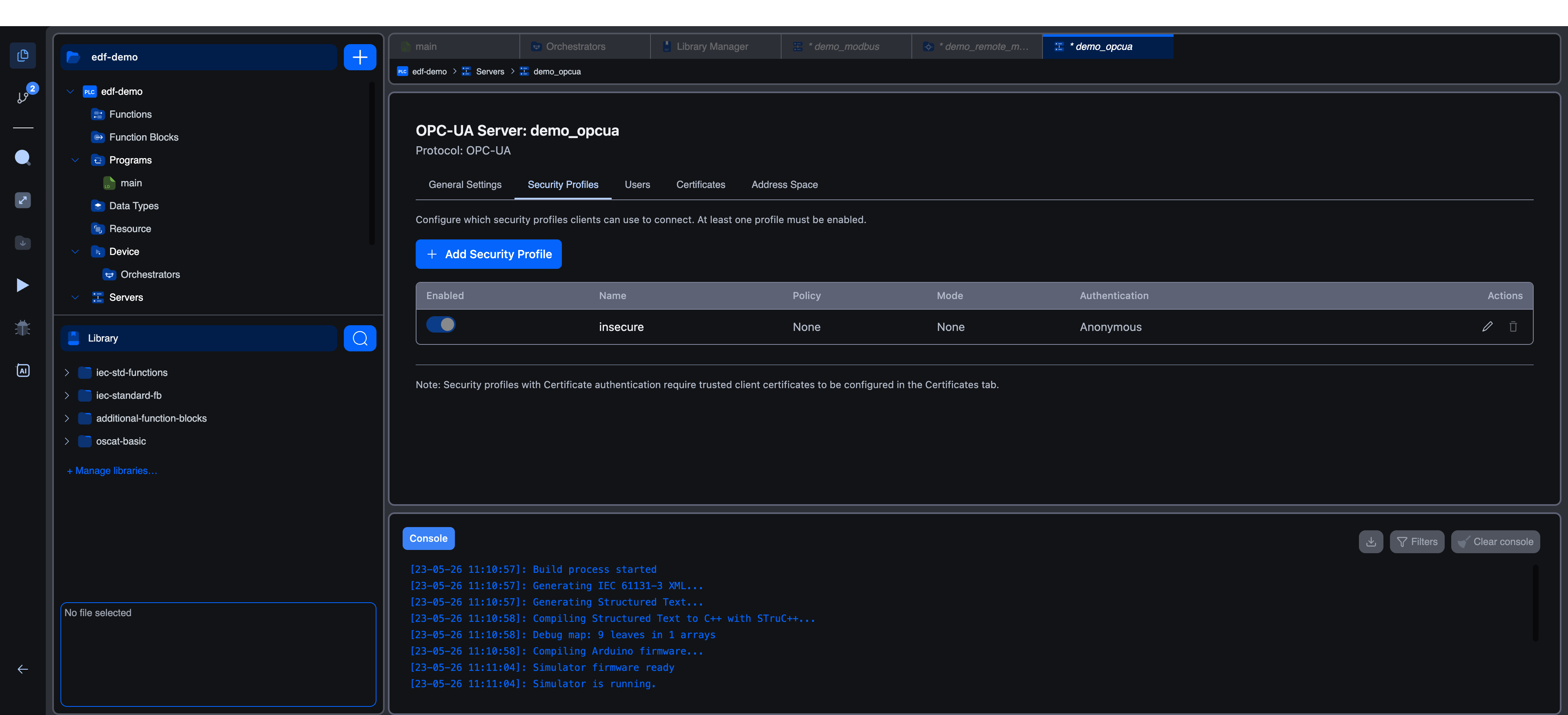
The Security Profiles tab defines the combinations of encryption, signing, and authentication that clients may use when they connect. Each profile is a separate row, and a client must match exactly one profile (policy + mode + at least one accepted authentication method) to be allowed in.
The on-screen description reads: "Configure which security profiles clients can use to connect. At least one profile must be enabled."
Default Profile
When you create an OPC-UA server, Autonomy Edge adds a single profile named insecure with these values:
| Field | Value |
|---|---|
| Policy | None |
| Mode | None |
| Authentication | Anonymous |
A yellow inline warning appears under this profile: "Warning: No encryption or authentication. Use only for development/testing."
The toggle and Delete button are disabled while insecure is the only enabled profile, so you cannot accidentally lock yourself out. To remove it, first add a second profile and enable it.
Profile Card Layout
Each profile in the list shows:
- A toggle to enable or disable it. The last enabled profile cannot be turned off. At least one profile must remain enabled.
- The profile name in bold.
- An Edit button that opens the profile editor.
- A Delete button that removes the profile (disabled when only one profile exists).
- The current Policy, Mode, Authentication methods, and a one-line description.
A note at the bottom of the tab reads: "Note: Security profiles with Certificate authentication require trusted client certificates to be configured in the Certificates tab."
Adding or Editing a Profile
Click + Add Security Profile at the top of the tab to open the profile editor. The same modal also opens when you click Edit on an existing profile, with the title changing from Add Security Profile to Edit Security Profile.
Profile Name
| Field | Description |
|---|---|
| Profile Name | Unique identifier for this profile. Required, maximum 64 characters. The inline hint reads Unique identifier for this profile. Names are case-insensitive: Secure and secure collide. |
Enabled
A toggle that controls whether the profile is active. Disabled profiles remain in the list but reject all client connections that match them.
Security Policy
The Security Policy combobox offers four options:
| Option (as shown in the UI) | When to Use |
|---|---|
| None (No Security) | Local testing only. No encryption and no signing. The Security Mode is forced to None and only Anonymous authentication is allowed. |
| Basic128Rsa15 | Legacy clients that do not support SHA-256. RSA-15 is now considered weak; avoid for new deployments. |
| Basic256 | Stronger than Basic128Rsa15 but still uses SHA-1. Use only when the client cannot be upgraded. |
| Basic256Sha256 (Recommended) | The modern default. AES-256 with SHA-256 signing. Use this for any production deployment. |
Security Mode
The Security Mode combobox offers up to two options, depending on the selected policy:
| Option (as shown in the UI) | Effect |
|---|---|
| Sign Only | Messages are digitally signed but not encrypted. Tamper-evident, but anyone on the wire can read the data. |
| Sign and Encrypt | Messages are signed and encrypted. The recommended setting for any policy other than None. |
When the policy is None, the dropdown is disabled and the helper text reads: "Security Mode is fixed to 'None' when Security Policy is 'None'." When you change the policy from None to a real policy, the editor automatically switches Mode to Sign and Encrypt.
Authentication Methods
This section uses three checkboxes. You must enable at least one.
| Checkbox | Description | Notes |
|---|---|---|
| Anonymous | No credentials required. Helper text: "No authentication required." | Only available when the Security Policy is None. With any other policy the box is disabled and the helper text changes to "Only available with Security Policy 'None'." |
| Username / Password | Clients send a username and password verified against the Users tab. Helper text: "Users must be configured in the Users tab." | Becomes the default when you switch from None to a real policy. |
| Certificate | Clients present an X.509 certificate that must be in the trusted list. Helper text: "Client certificates must be added to trusted list." | Requires entries in the Trusted Client Certificates list. See Certificates. |
Validation
If the form is incomplete, an error list appears above the buttons and Add Profile / Save Changes stays disabled. The validation rules surfaced in the UI are:
- "Profile name is required"
- "Profile name must be 64 characters or less"
- "A profile with this name already exists"
- "Security Mode must be 'None' when Security Policy is 'None'"
- "Security Mode cannot be 'None' when using a security policy"
- "Anonymous authentication is only available with Security Policy 'None'"
- "At least one authentication method is required"
Saving
Click Add Profile (new) or Save Changes (edit) to apply. Cancel discards the changes and closes the modal.
Recommended Profiles
Production
A typical secure deployment uses one strong profile and disables insecure:
| Profile | Policy | Mode | Authentication |
|---|---|---|---|
secure_password | Basic256Sha256 (Recommended) | Sign and Encrypt | Username / Password |
secure_certificate | Basic256Sha256 (Recommended) | Sign and Encrypt | Certificate |
If you only need one entry point, a single profile with both Username / Password and Certificate checked is sufficient.
Development
For local testing where you do not yet have certificates or user accounts, the default insecure profile is acceptable. Disable it again before connecting the runtime to a shared network.
What's Next?
- Users: create the password-based or certificate-bound accounts referenced by your profiles.
- Certificates: supply the server certificate and the trusted client certificates needed for
Certificateauthentication. - Address Space: choose which variables clients are allowed to read or write.