Users
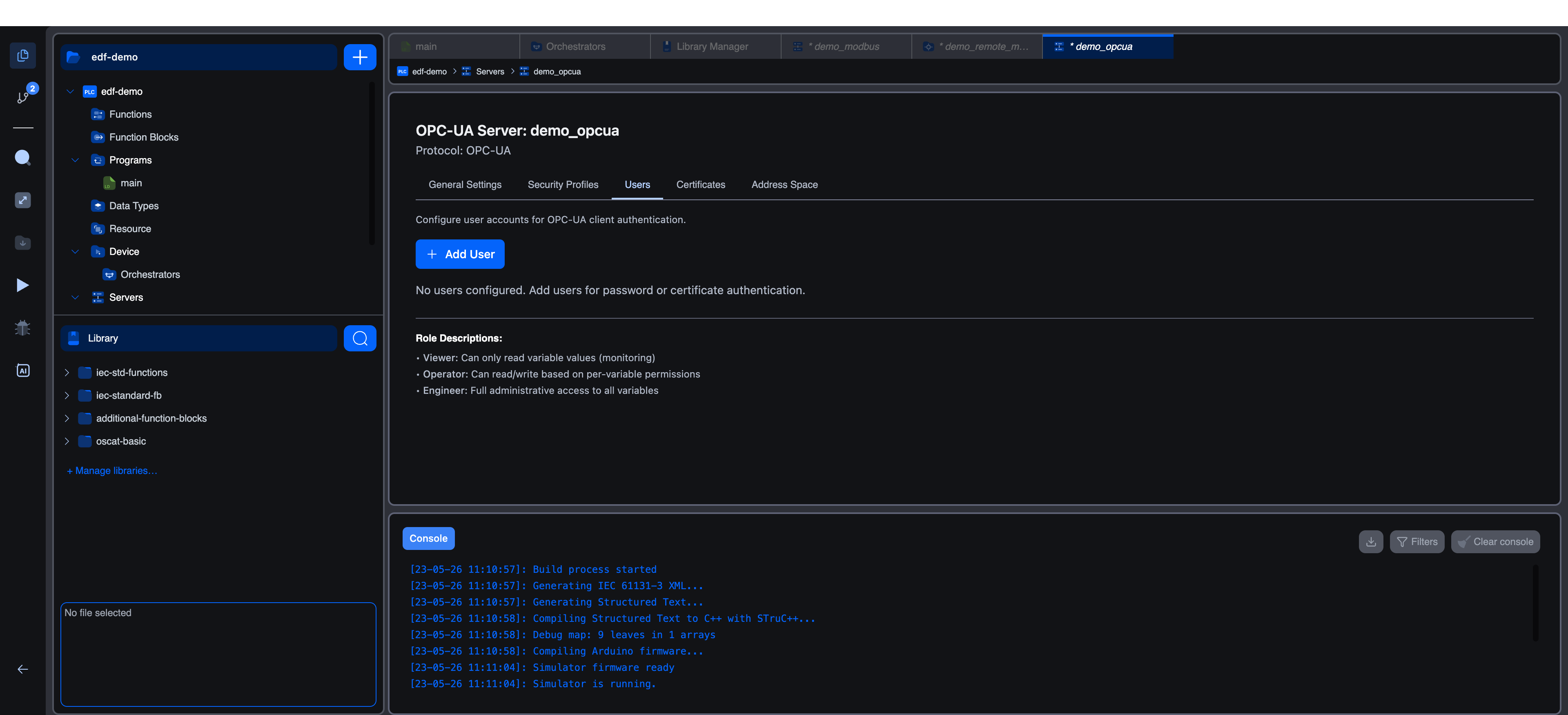
The Users tab manages the accounts that can authenticate against the OPC-UA server. Each user is either a Password account (username + password) or a Certificate account (bound to a trusted client certificate). Every user is assigned a role that controls what they can read and write through the Address Space.
The on-screen description reads: "Configure user accounts for OPC-UA client authentication."
When You Need Users
The Users tab is consulted when a client connects with a security profile that has Username / Password or Certificate authentication enabled. If your server only accepts Anonymous connections (the default insecure profile) no users are required.
If a security profile has Username authentication enabled but no password users exist, an inline warning appears at the top of the tab:
Warning: Username authentication is enabled but no password users exist. Add at least one user for clients to authenticate.
When the user list is empty, the tab shows a placeholder:
No users configured. Add users for password or certificate authentication.
Adding a User
Click + Add User. A modal titled Add User opens. The fields shown depend on the Authentication Type you select.
Authentication Type
| Option | Description |
|---|---|
| Password | Username and password verified by the server. Default. |
| Certificate | The user is identified by an X.509 client certificate that must already exist in the trusted list (see Certificates). |
Password Authentication
When Password is selected, the following fields appear inside a "Password Authentication" section:
| Field | Type | Description |
|---|---|---|
| Username | Text, max 64 characters | Required. Must be unique (case-insensitive). |
| Password | Password (with show/hide eye icon) | Required for new users. Minimum 4 characters. |
| Confirm Password | Password | Must match the Password field exactly. |
When editing an existing user, the Password label changes to "New Password (leave blank to keep current)". Leaving both password fields empty preserves the existing credential.
The eye icon next to the Password field is disabled until at least one character is typed. Its tooltip reads:
- "Enter a password to toggle visibility" when empty.
- "Show password" when the password is hidden.
- "Hide password" when the password is visible.
Certificate Authentication
When Certificate is selected, a "Certificate Authentication" section replaces the password fields. It contains a single Client Certificate dropdown that lists every trusted certificate not already bound to another user.
| Field | Description |
|---|---|
| Client Certificate | Required. Pick the certificate that identifies this user. The helper text reads "Select from trusted certificates configured in the Certificates tab." |
If the list is empty, the section shows: "No trusted certificates available. Add certificates in the Certificates tab first." You must add a trusted certificate (see Certificates) before you can create a certificate-bound user.
User Role
Every user has a Role chosen from a dropdown:
| Role | Description (as shown in the UI) |
|---|---|
| Viewer | "Read-only access to all variables" |
| Operator | "Read/Write based on per-variable permission settings" (default for new users) |
| Engineer | "Full administrative access" |
A summary panel at the bottom of the tab repeats these descriptions as a quick reference:
- Viewer: Can only read variable values (monitoring)
- Operator: Can read/write based on per-variable permissions
- Engineer: Full administrative access to all variables
The actual capabilities a role has are defined per variable on the Address Space tab. The role is the index into that permission matrix; the matrix decides what the role can read or write.
Validation
The validation messages shown in the modal are:
- "Username is required"
- "Username must be 64 characters or less"
- "A user with this username already exists"
- "Password is required"
- "Password must be at least 4 characters"
- "Passwords do not match"
- "Please select a certificate"
- "No trusted certificates available. Add certificates in the Certificates tab first."
Saving
Click Add User (new) or Save Changes (edit) to apply. Cancel discards the changes.
User Card Layout
Once added, each user appears as a row in the list with:
- An icon.
👤for password users,🔐for certificate users. - The display name. Username for password users, certificate ID for certificate users.
- A coloured Role badge (Viewer = blue, Operator = amber, Engineer = green).
- Edit and Delete buttons on the right.
- Inline detail rows showing the authentication type and, for certificate users, the bound certificate ID.
Choosing Roles
A common assignment scheme:
| Account purpose | Role |
|---|---|
| SCADA dashboard / historian polling | Viewer |
| HMI panel that operators use during a shift | Operator |
| Engineering workstation used to commission and tune the line | Engineer |
Keep Engineer accounts to a minimum and prefer Certificate authentication for them. See Certificates.
What's Next?
- Certificates: required before you can create certificate-bound users.
- Address Space: define what each role is allowed to read or write per variable.
- Security Profiles: confirm the profile you intend to use accepts the authentication method matching your users.
On This Page