Publishing a Library
Once you have created and compiled a library, you can publish it to the Autonomy Edge public library catalogue so other people, and your own other projects, can install it straight from the editor.
Publishing uploads only the compiled .stlib artifact. Your project's source code is never published and keeps whatever visibility you set on the project. A private library project can publish a public .stlib without exposing a single line of its source.
Tip: The publish controls only appear once the library has been built at least once: there has to be a
build/<name>.stlibartifact to publish. If you don't see them, open the library in the editor and run Build Library first (see Creating a Library).
Two ways to publish
There are two entry points, and they open the same dialog.
From the project page
Open the library's project page on Autonomy Edge. A Publish library button sits in the top-right corner, next to Open in editor. The file list shows the compiled archive under build/:
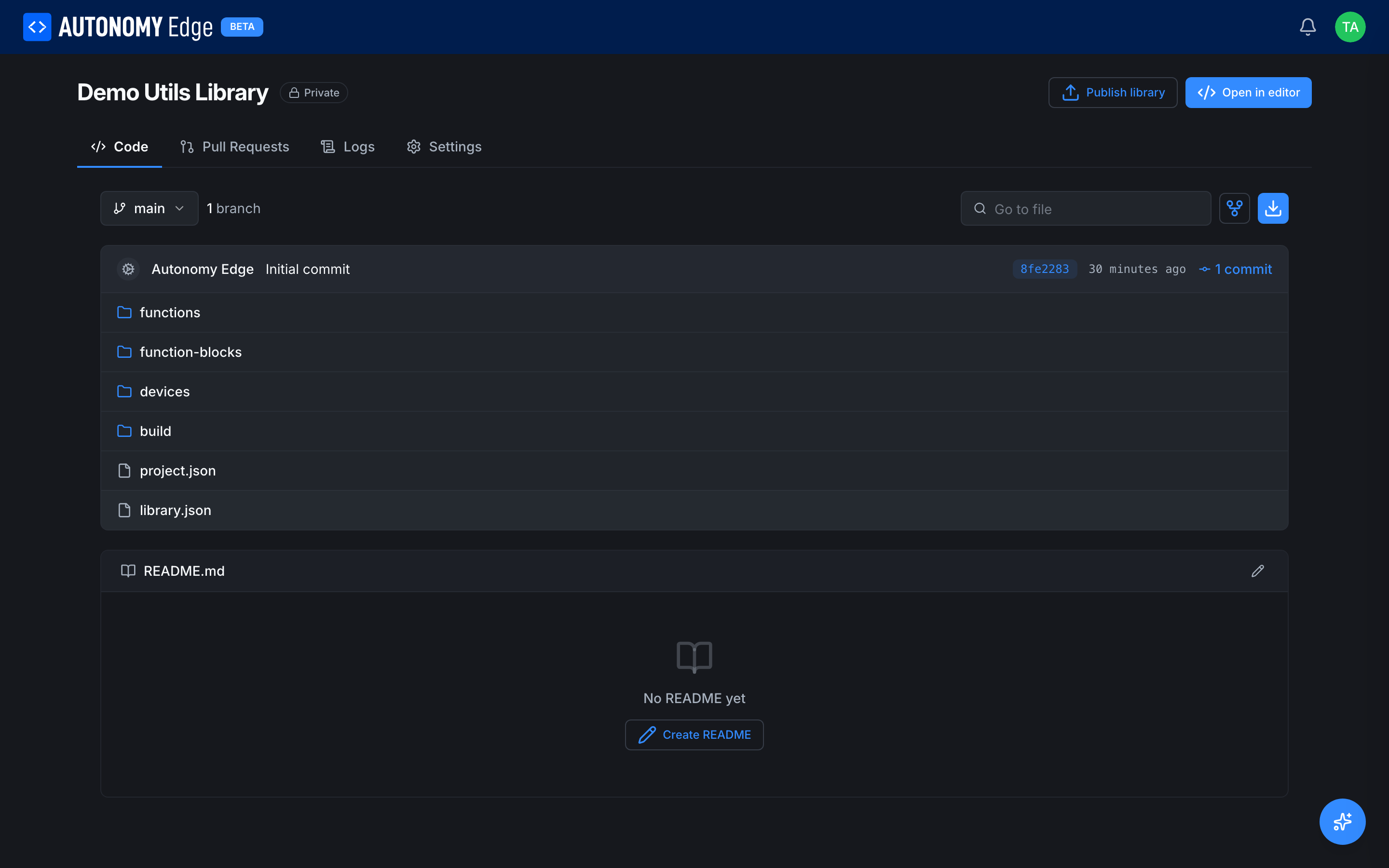
Click Publish library.
From the project settings
Alternatively, open the project's Settings tab and choose Publications in the left menu, then click Publish current build. This is the place to manage publications over time (see Managing publications below).
The publish dialog
Both buttons open the same confirmation dialog. It names the exact artifact that will be published, its size, and a clear warning that the archive becomes publicly downloadable:
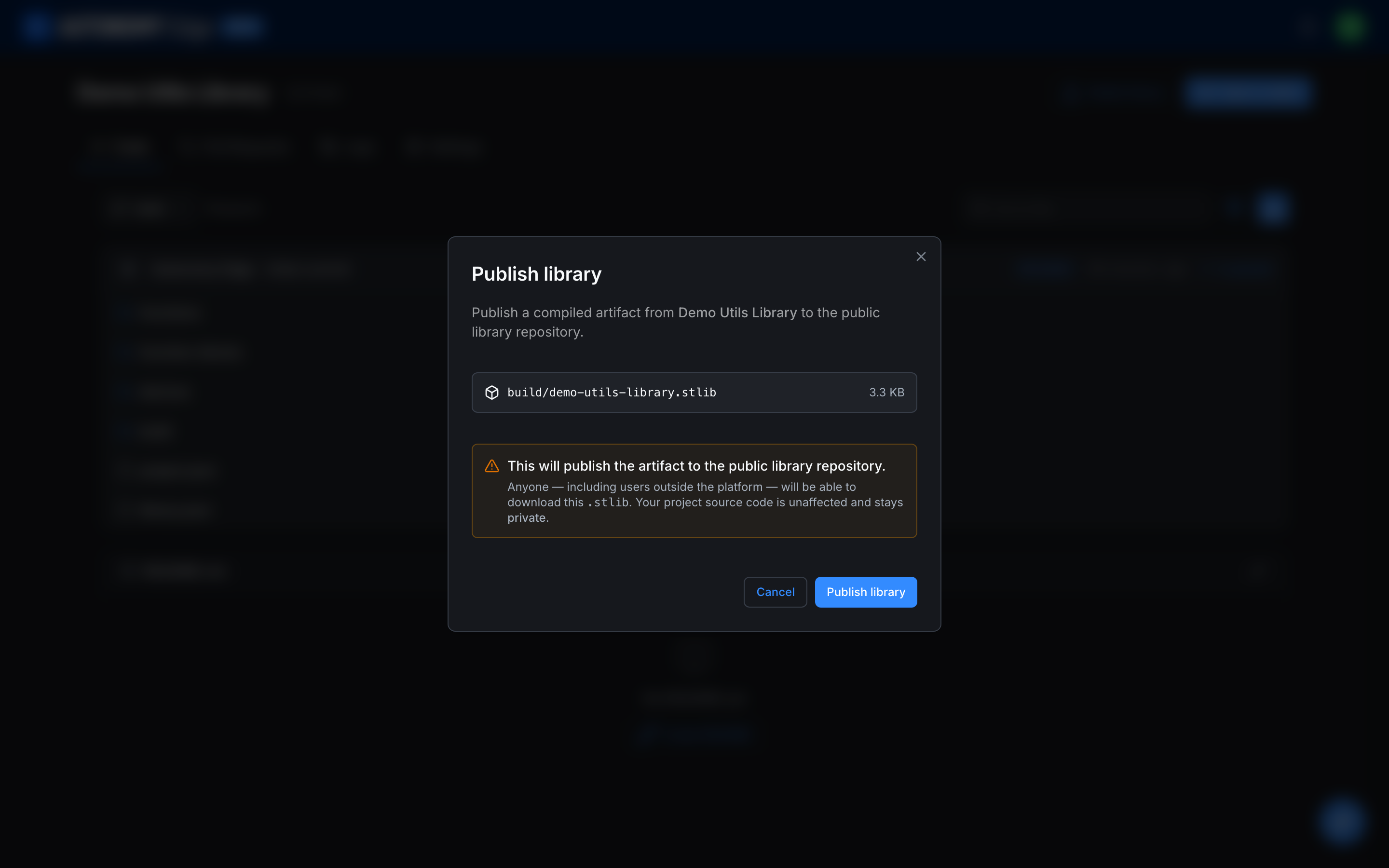
Review the artifact and click Publish library. The editor confirms with a toast such as Published demo-utils-library@0.1.0. The version comes straight from the version field in your manifest.
Versions are immutable snapshots
Each publication is a frozen snapshot of the compiled .stlib at the moment you published it. You cannot overwrite a published version in place. To ship changes:
- Edit your functions or function blocks in the editor.
- Bump the
versionfield inlibrary.json(for example0.1.0→0.2.0). - Build Library again.
- Publish again.
The new version is added alongside the existing one, so projects pinned to an older version keep working.
Managing publications
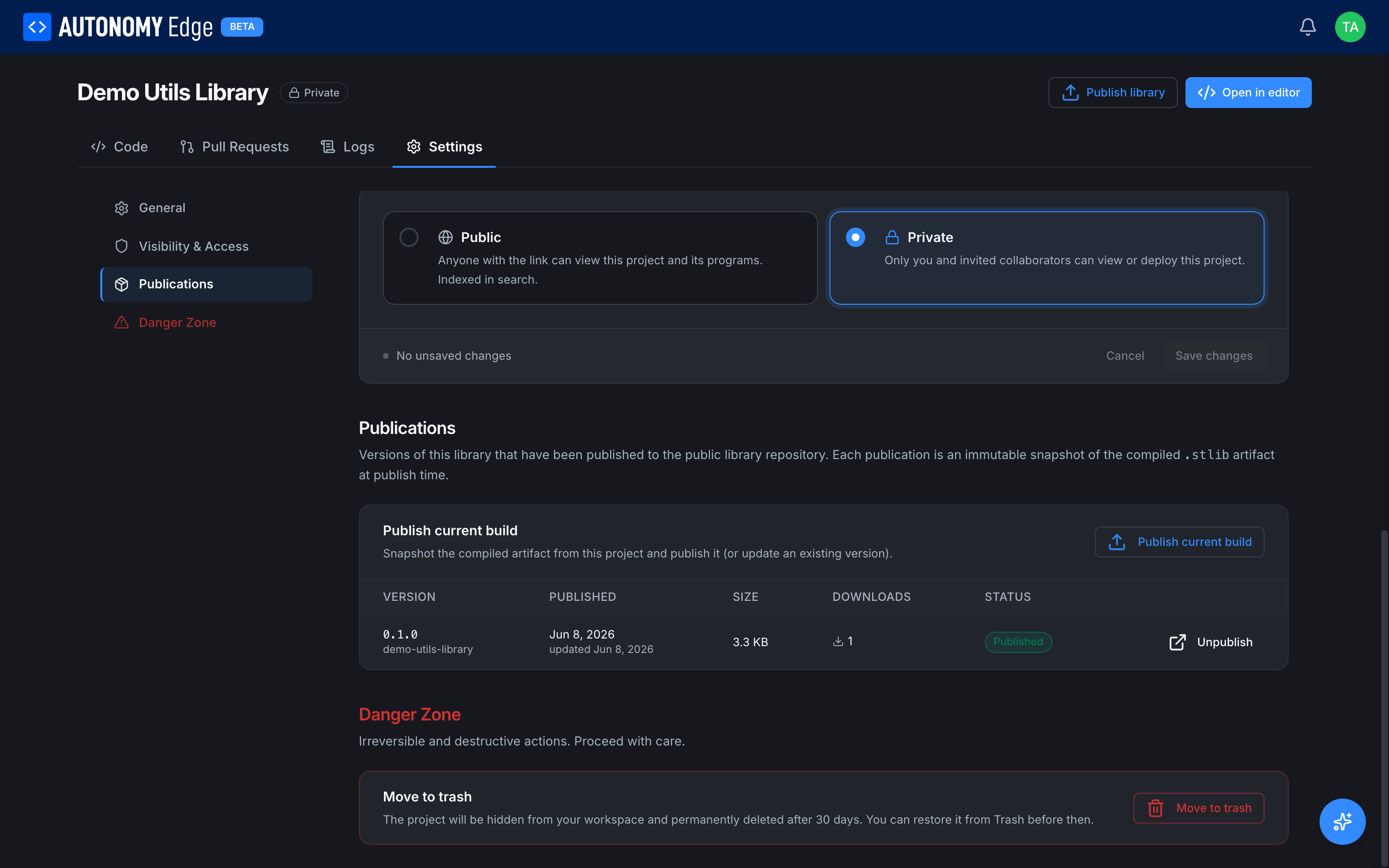
The Publications panel under Settings lists every version you have published, with its publish date, size, download count, and status. This is also where you publish a fresh build or remove an existing publication:
Removing a publication
To take a version off the public catalogue, click Unpublish on its row. The button turns into a Cancel / Confirm prompt in place. Click Confirm to remove it. Once unpublished, the version no longer appears in the catalogue and can no longer be installed, though anyone who already installed it keeps their local copy.
Unpublishing affects only the public listing; it does not touch your project, its source, or the compiled artifact in build/.
What's next
- Installing a Library: install a published library into another project.
- Creating a Library: the authoring and build flow that produces the
.stlib.
On This Page