ST Editor Features
The Autonomy Edge IDE includes a powerful code editor for writing Structured Text programs. It comes with modern development features like syntax highlighting, IntelliSense code completion, and real-time error detection. Everything you need to write correct and efficient ST code.
Editor Overview
The ST editor is part of the dual-structure workspace for Structured Text programming:
- Variables Table (top section): Define variables with their names, types, and classes.
- Code Editor (bottom section): Write your ST code with full editor support.
This separation ensures that all variables are properly declared before use, following IEC 61131-3 conventions.
Syntax Highlighting
The editor automatically highlights different elements of your ST code using distinct colors, making it easier to read and understand program structure at a glance.
Highlighted Elements
Keywords appear in a distinct color:
IF,THEN,ELSE,ELSIF,END_IFCASE,OF,END_CASEFOR,TO,BY,DO,END_FORWHILE,END_WHILEREPEAT,UNTIL,END_REPEATVAR,END_VAR,PROGRAM,FUNCTION,FUNCTION_BLOCK
Operators are clearly visible:
- Assignment:
:= - Arithmetic:
+,-,*,/,**,MOD - Comparison:
=,<>,<,>,<=,>= - Logical:
AND,OR,XOR,NOT
Literals get their own highlight color:
- Numbers:
25.5,100,-42 - Strings:
'Hello, World!' - Time:
T#5s,T#100ms - Boolean:
TRUE,FALSE
Comments stand out clearly from executable code:
- Single-line:
// This is a comment - Multi-line:
(* This is a multi-line comment *)
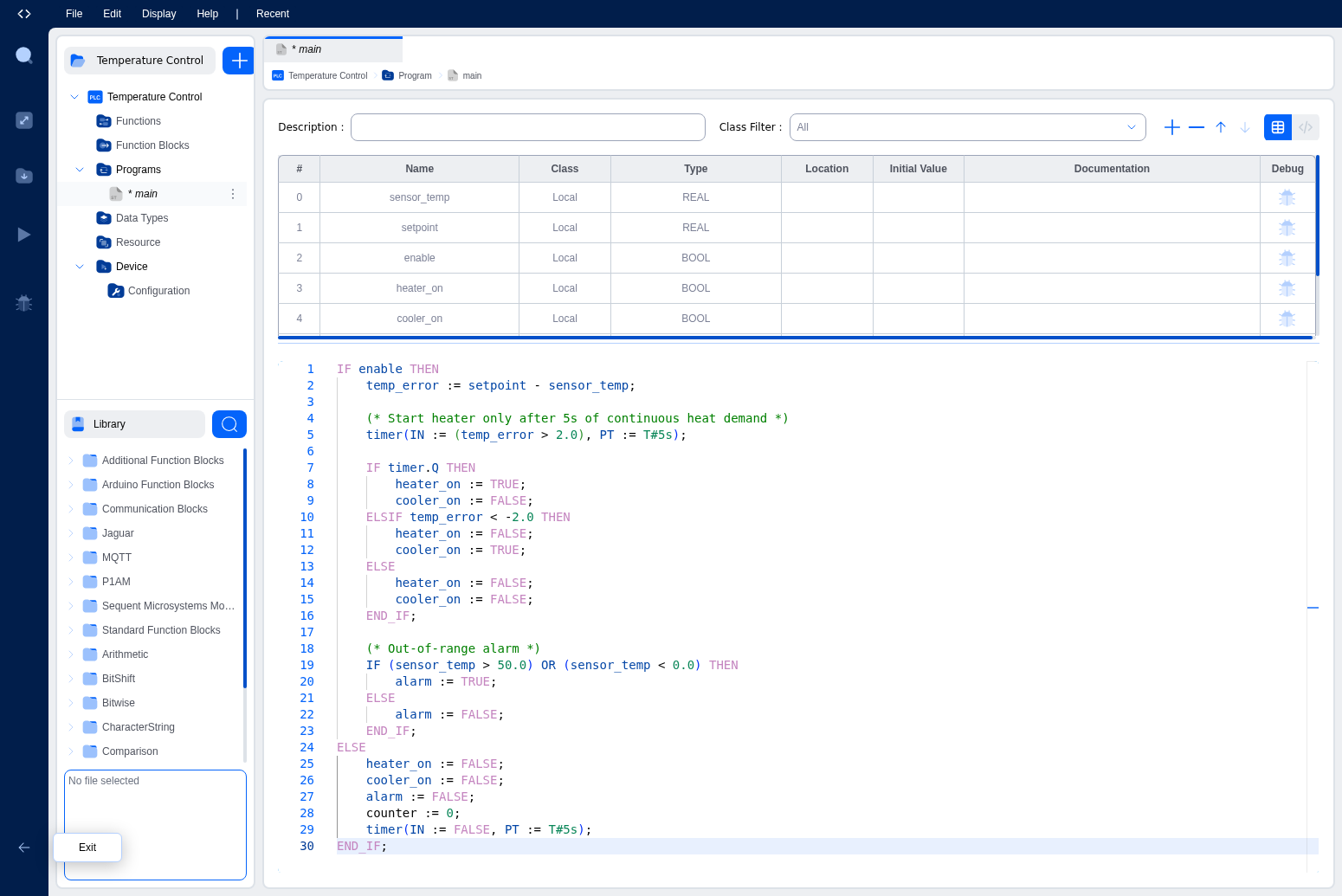
Tip: If a keyword you typed isn't highlighted, that's a good sign you've got a typo. Syntax highlighting doubles as a quick error spotter.
IntelliSense and Code Completion
IntelliSense provides intelligent code completion suggestions as you type, helping you write code faster and with fewer mistakes.
Triggering IntelliSense
IntelliSense activates automatically when:
- You start typing a variable name
- You type a dot (
.) to access structure or function block members - You start typing a keyword
- You press
Ctrl+Spacemanually
What IntelliSense Suggests
Variable Names: All variables defined in your Variables Table appear as suggestions.
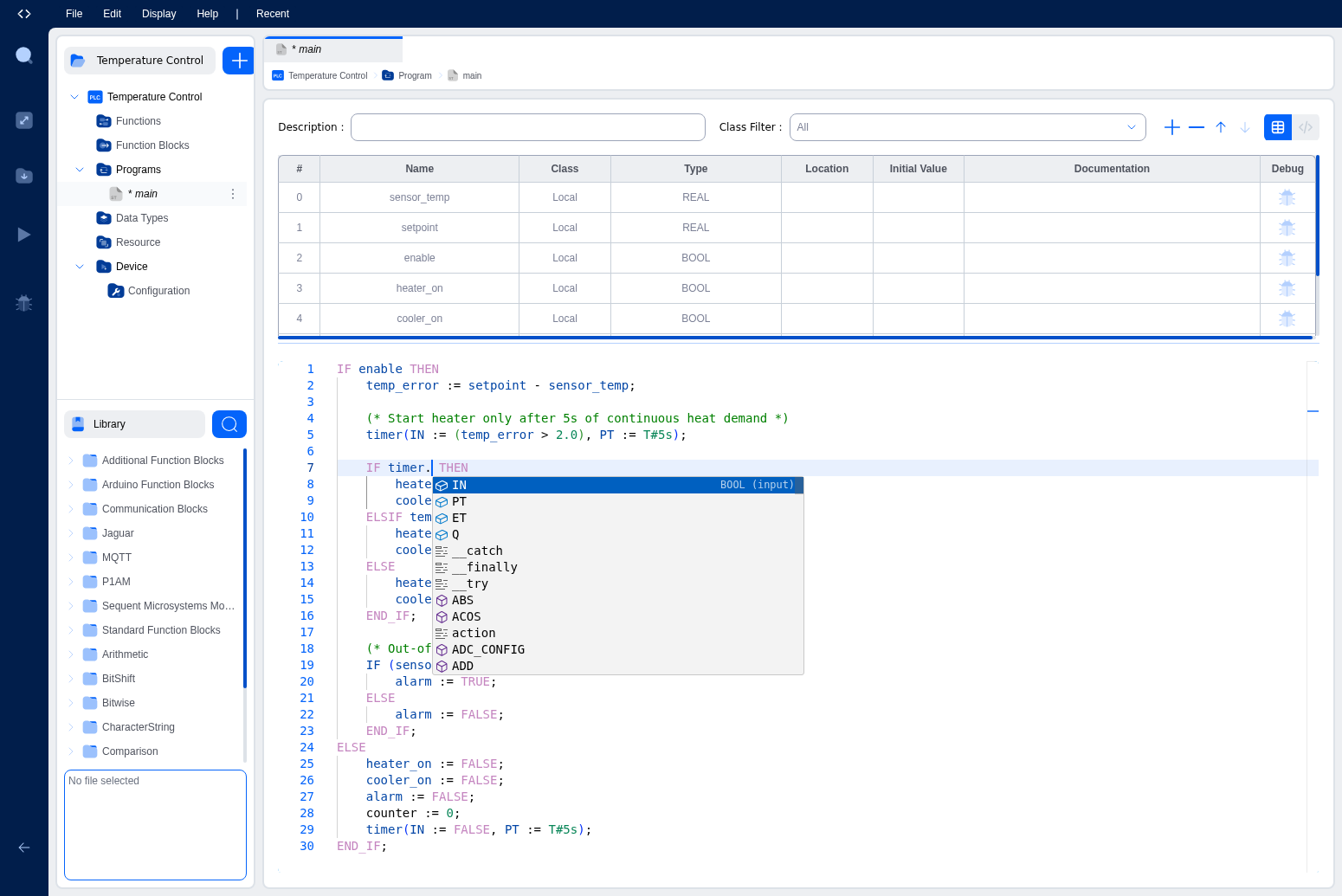
Function Block Members: When you type a function block instance name followed by a dot, IntelliSense shows its members. For example, typing timer. on a TON instance displays:
- IN: Boolean input to start the timer
- PT: Preset time (how long to wait)
- ET: Elapsed time (current timer value)
- Q: Output (TRUE when timer completes)
The autocomplete also shows the data type for each member (e.g., "BOOL (input)" for IN), so you know what values are expected.
Keywords: ST language keywords for control structures:
codeIF, THEN, ELSE, ELSIF, END_IF
CASE, FOR, WHILE, REPEAT
Built-in Functions: Standard IEC 61131-3 functions:
codeABS       // Absolute value
SQRT      // Square root
SIN, COS  // Trigonometric functions
MAX, MIN  // Maximum/minimum
CONCAT    // String concatenation
LEN       // String length
Function Blocks: Available function block types from libraries:
codeTON       // Timer On-Delay
TOF       // Timer Off-Delay
TP        // Timer Pulse
CTU       // Counter Up
CTD       // Counter Down
RS        // Reset-Set bistable
SR        // Set-Reset bistable
Data Types: Available data types for declarations:
codeBOOL
INT, DINT, REAL
STRING
TIME, DATE
ARRAY
Using IntelliSense Effectively
- Start typing a variable or keyword name.
- Review suggestions in the dropdown.
- Navigate with arrow keys.
- Select by pressing
EnterorTab. - Filter by continuing to type.
- Manual trigger: press
Ctrl+Spaceany time to show suggestions.
IntelliSense for Structures
When you're working with structured data types, IntelliSense helps you navigate nested members:
codemotor_data.speed      // Access speed field
motor_data.current    // Access current field
motor_data.running    // Access running field
After typing motor_data., IntelliSense displays all available fields in the structure.
Code Editor Features
Line Numbers
Line numbers appear on the left side of the editor. They help you reference specific lines when discussing code and quickly find error locations.
Auto-Indentation
The editor automatically indents code within control structures:
- Code inside
IF...END_IFblocks is indented. - Nested structures get additional indentation.
- Pressing
Entermaintains the current indentation level.
Example:
codeIF enable THEN
    temp_error := setpoint - sensor_temp;

    IF timer.Q THEN
        heater_on := TRUE;
    END_IF;
END_IF;
Bracket Matching
When you click near a bracket or parenthesis, the editor highlights its matching pair. This helps you verify that all brackets are properly closed and understand the scope of expressions.
Find and Replace
Ctrl+F: Open the find dialogCtrl+H: Open find and replace
Code Folding
You can collapse sections of code to focus on specific areas. Look for fold indicators next to line numbers for:
- IF/END_IF blocks
- CASE/END_CASE blocks
- FOR/END_FOR loops
- WHILE/END_WHILE loops
- REPEAT/END_REPEAT loops
Working with Variables
Variables Table Integration
The Variables Table and Code Editor work together seamlessly:
- Define first: Add variables in the Variables Table before using them in code.
- Automatic recognition: Variables appear in IntelliSense immediately after definition.
- Type checking: The editor knows each variable's data type.
- Scope awareness: Only variables in scope are suggested.
For more information, see Working With Variables in the IDE.
Drag and Drop
You can drag functions and function blocks from the library directly into the code editor, automatically inserting the variable name at the cursor position.
Keyboard Shortcuts
| Shortcut | Action |
|---|---|
Ctrl+Space | Trigger IntelliSense manually |
Ctrl+F | Find in current file |
Ctrl+H | Find and replace |
Ctrl+Z | Undo |
Ctrl+Y | Redo |
Ctrl+C | Copy selection |
Ctrl+X | Cut selection |
Ctrl+V | Paste |
Ctrl+A | Select all |
Home | Move to beginning of line |
End | Move to end of line |
Ctrl+Home | Move to beginning of file |
Ctrl+End | Move to end of file |
Tab | Indent selection |
Shift+Tab | Unindent selection |
Tips for Efficient Coding
- Define variables first: Complete your Variables Table before writing code.
- Use descriptive names: Longer, clear names are better than cryptic abbreviations. IntelliSense will type them for you.
- Leverage autocomplete: Press
Ctrl+Spacefrequently. Let IntelliSense do the typing. - Add comments as you go: Document your logic while it's fresh in your mind.
- Test frequently: Compile and test code regularly rather than writing everything at once.
- Learn the shortcuts: Keyboard shortcuts speed up editing significantly.
What's Next?
- ST Language Basics: Review ST syntax, operators, and control structures
- ST Programming Examples: Practical ST programming patterns
- Variables and Data Types: Variable management guide
- Building and Deploying: Compile and deploy your ST programs
On This Page