Posting a topic
A topic is the unit of conversation in the forum. To start one, you need a signed-in account and a few minutes to write a clear title and body.
Reach the composer by clicking + New Topic from the forum home or any board page.
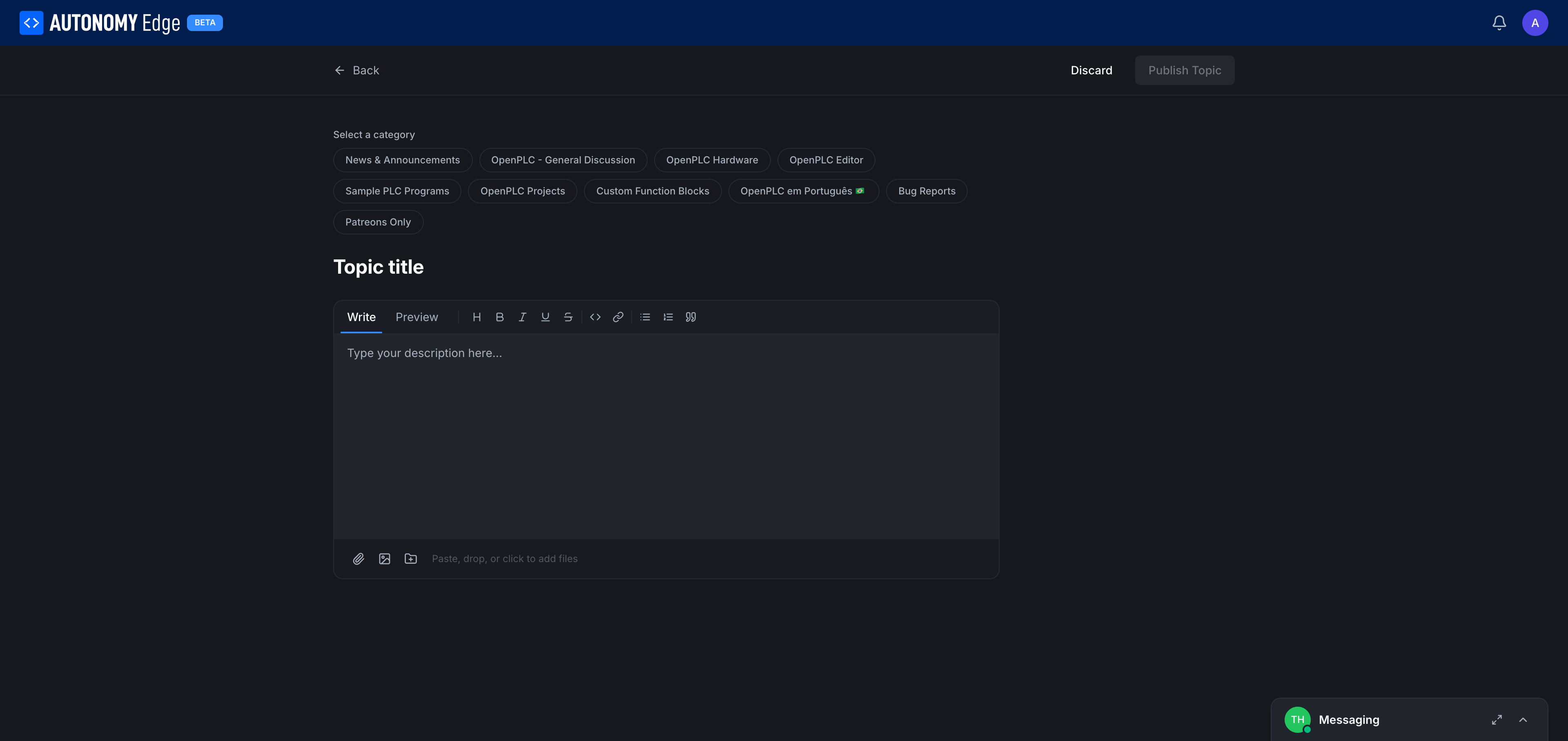
Pick a category
The first thing the page asks for is the category. A row of chips lists every available category:
- News & Announcements
- OpenPLC - General Discussion
- OpenPLC Hardware
- OpenPLC Editor
- Sample PLC Programs
- OpenPLC Projects
- Custom Function Blocks
- OpenPLC em Português (Portuguese-language)
- Bug Reports
- Patreons Only
If you arrived here from a board page, the category is pre-selected. You can change it.
Pick the most specific category that fits. The wrong category usually leads to fewer responses, wrong-category topics often get moved by moderators, but it costs an hour or two.
Topic title
Below the categories, a large Topic title field. Some guidance:
- Be specific. "ModbusTCP server in OpenPLC won't accept connections from Schneider M580" beats "Modbus problem".
- Lead with the noun, not "Help with" or "Question about".
- 60–80 characters is a sweet spot: long enough to be descriptive, short enough to fit in the topic list.
The editor
Below the title is a rich-text editor with two tabs:
- Write: markdown editor where you type your post.
- Preview: rendered view to verify formatting before publishing.
The toolbar across the top has the standard formatting actions:
| Icon | Action |
|---|---|
| H | Heading (h1/h2/h3 cycling). |
| B | Bold. |
| I | Italic. |
| U | Underline. |
| S | Strikethrough. |
<> | Inline code or code block. |
| 🔗 | Insert link. |
| • | Bulleted list. |
| 1. | Numbered list. |
" | Block quote. |
The editor accepts markdown syntax directly, typing **bold** produces bold without using the toolbar.
Attaching files
Below the editor body is the attachment area: Paste, drop, or click to add files.
Three ways to attach:
- Paste: Cmd/Ctrl+V from the clipboard. Useful for screenshots.
- Drag and drop: drag files from your file manager into the area.
- Click: opens a file picker.
Common attachments:
- Screenshots of the editor or the platform showing the issue.
- Wiring diagrams.
- Small project zips (under 10 MB).
- Logs as
.txtor.logfiles.
Large files (videos, big datasets), link out to YouTube, Google Drive, or GitHub instead of attaching.
Publishing
Top right of the page:
- Discard: abandon the draft and go back.
- Publish Topic: publish and land on the thread page. The topic appears in its category immediately.
Drafts are not saved server-side today, if you close the browser without publishing, your work is lost. Save important drafts in a markdown file or paste them into a private note while writing.
Good-topic checklist
Before clicking Publish Topic:
- Right category?
- Title is specific?
- Body says what you tried and what happened?
- Relevant version info included (runtime version, agent version, OS)?
- Attached the right files (screenshots, logs)?
- No private data (passwords, API keys, internal customer info) in screenshots or paste?
Editing after publishing
You can edit your own topic for a limited window after publishing. The edit pencil appears on hover over your own post. After the window closes, you can still request edits by flagging the post with a "Please edit" reason or by asking a moderator.
Where to next
- Reply or react to threads you find → Replying and reactions.
- Direct-message someone instead of posting publicly → Messaging.
- Browse what's already been asked → Reading and searching.
On This Page