Dashboard tour
The first screen you see after signing in is your dashboard. It's the home base for everything else on the platform: projects, Devices, community activity, and the user menu all start here.
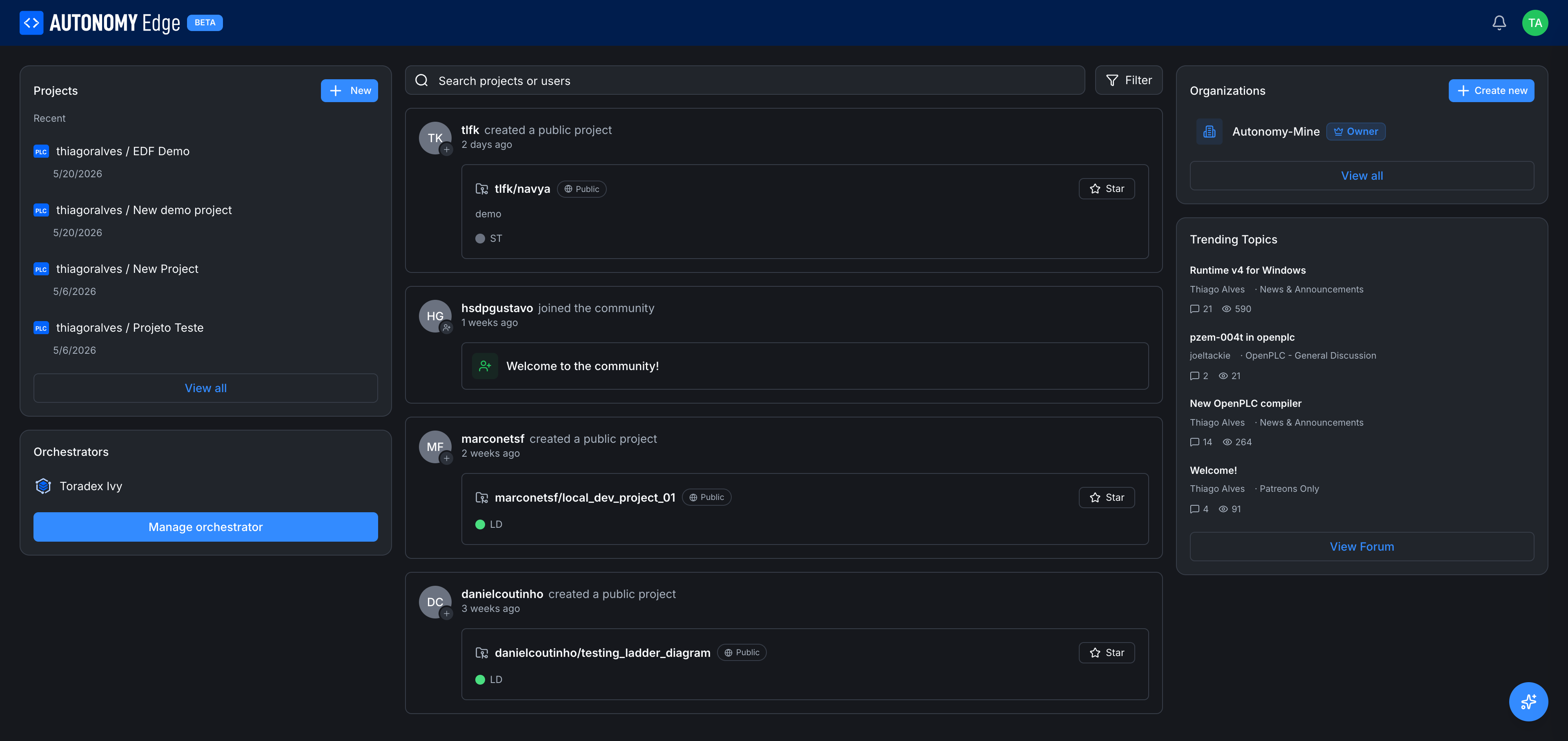
If you switch to an organization's workspace the layout stays the same, with the organization's projects, Devices, and members in place of your personal ones.
There are five regions to know about.
1. The top header
Stretching across the screen at the very top:
- AUTONOMY Edge BETA logo (left): clicks back to this dashboard.
- Bell icon: opens Notifications. The icon shows an unread dot when new notifications arrive.
- Avatar circle (right edge, with your initials): opens the user menu (covered below).
2. Left column: your tools
This column lists the things that are yours in the current workspace.
- Projects card with a + New button at the top. Below it, the four most recently modified projects, with a View all link at the bottom that takes you to your projects list.
- Devices card. If you have one or more Devices set up, the first one is named here. The blue Manage devices button takes you to the Devices list.
When you switch to an organization workspace, this column shows that organization's projects and Devices instead of yours.
3. Center column: the feed
The center is an activity stream of things people in the community are doing, creating public projects, joining the community, updating organization settings. It's a low-friction way to discover what others are building.
At the top of the feed:
- Search projects or users: a free-text search box. Results show project cards and user cards.
- Filter button: opens a dropdown to switch the feed source. Today: Recents (default). Recommended and Popular are listed as coming soon. If you belong to organizations, each one appears under Organization Feeds so you can scope the feed to that org.
See Feed for the full breakdown.
4. Right column: organizations and trending
- Organizations card. Lists each organization you belong to with its role badge (Owner, Admin, Member). The + Create new button at the top opens the Create organization modal. The View all link goes to the organizations list.
- Trending Topics card. The hottest threads in the forum right now, with comments and view counts. The View Forum button at the bottom jumps to the forum home.
5. The Autonomy AI button (bottom-right)
In the bottom-right corner of every protected page, there is a sparkle button. It opens the Autonomy AI assistant, a chat panel grounded on these docs. The shortcut ⌘J (macOS) or Ctrl+J (Windows/Linux) toggles it from anywhere.
The user menu
Clicking the avatar circle in the header opens the user menu:
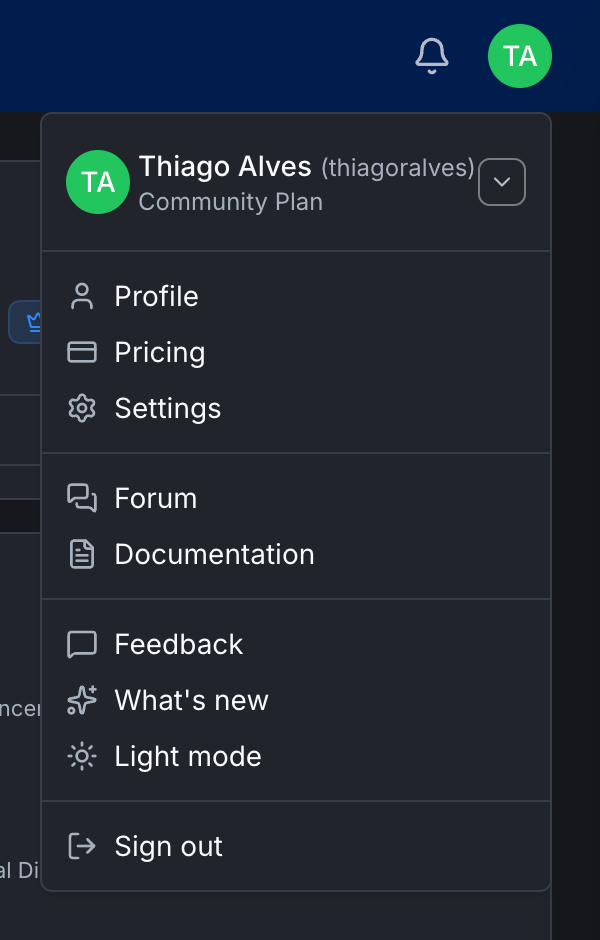
The items, top to bottom:
- Your name and plan badge (e.g. Thiago Alves · Community Plan): clicks open your own profile.
- Profile: your public user profile page.
- Pricing: the public pricing page.
- Settings: your account settings.
- Forum: jumps to the forum home.
- Documentation: opens these docs.
- Feedback: opens an in-app feedback form for reporting issues or suggesting features.
- What's new: opens the Changelog of recent platform updates.
- Light mode / Dark mode toggle: switches the theme.
- Sign out: ends your session.
Switching workspaces
To switch to an organization's workspace, click the organization's name in the Organizations card on the right. You land on that organization's dashboard, with the same layout but the org's projects, Devices, and members in place of your personal ones. The header, user menu, forum, and AI assistant stay the same since they're personal, not workspace-scoped.
What's next
- Start a project → Creating a project.
- Install your first Device → Installing the Device Agent or follow the end-to-end Quick Start.
- Look around the community → Forum overview.
On This Page